
All customers
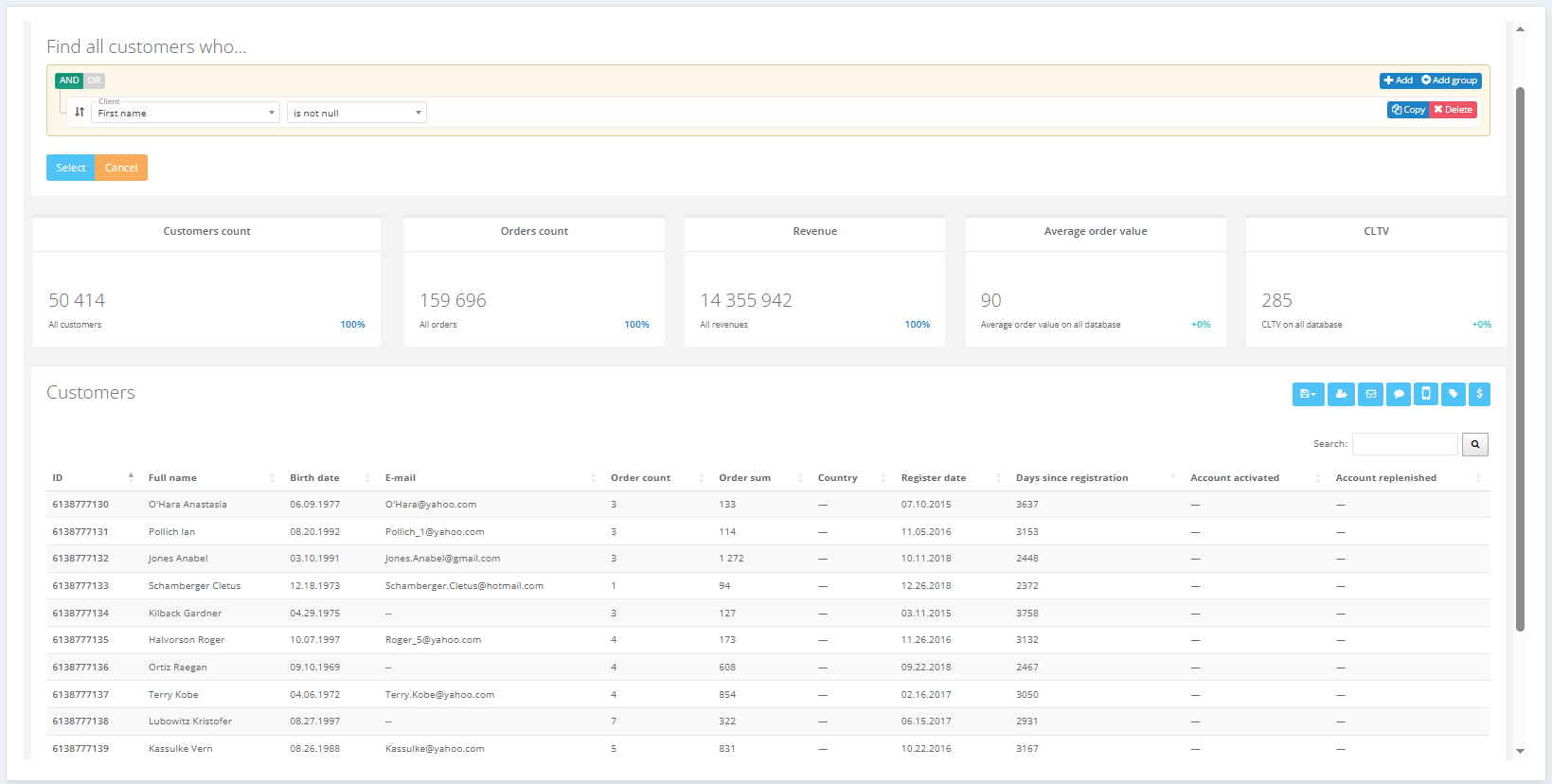
This section allows to display a list of customers by setting filter parameters and to view personal information for individual customers.
Contents:
Customer list
Here you can view information about individual customers or customer groups. Flexible customer search is available using various parameters such as:
- Personal and contact details: surname, first name, date of birth, gender, phone number, email, address, etc.,
- Purchase data and receipt composition: date of the first or last receipt, average receipt amount, average product price per receipt, etc.,
- Favorite products,
- Number of accrued bonus points,
- Participation in polls and newsletters, etc.
Actions that can be quickly performed with a selected customer segment by clicking a button are described in detail in the article Segment builder. Segment metrics such as number of orders, revenue, average receipt amount, etc., are also covered there.
|
Customer profile
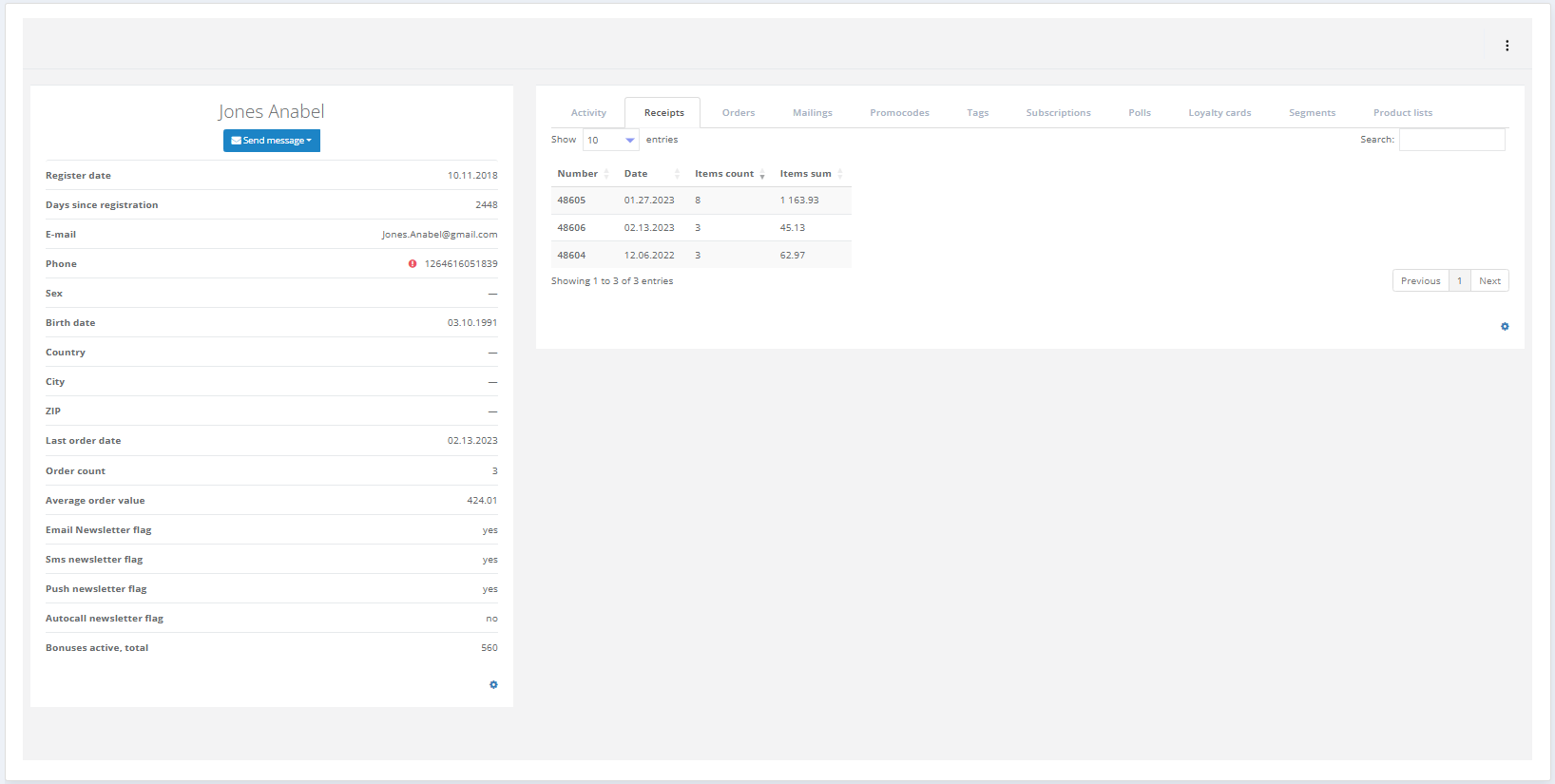
The Customer profile contains all information available about the customer received by Smart Communications from various sources. Access to the customer profile is available by clicking on the customer ID in the customer list. All data from the customer profile is used for building segments. The customer profile includes both general customer information and details about their actions.
|
Customer information
Customer information is located in the left part of the profile and contains personal data:
- Contact details (phone number, email). If contact information is missing or invalid, a warning icon
 is displayed next to it.
- The system automatically detects the phone type (mobile or landline) and displays it on the screen. If customers provided a landline number, they will be excluded from SMS messages.
- If customer email address is invalid, it will be excluded from all email messages.
- Profile data (gender, date of birth, country, city, registration date, etc.). These are the details a customer provided upon registration in the Loyalty Program.
- Metrics — customer-related data used in the Segment builder:
- Date of first receipt;
- Date of last receipt;
- Days since first receipt;
- Days since last receipt;
- Last receipt amount;
- Number of receipts;
- Total amount spent in receipts;
- Average receipt amount;
- Average product count per receipt;
- Number of attributed orders;
- Average order value;
- Order count;
- Average price of item in an order;
- First order date;
- Last order date;
- Days from first order;
- Days from last order;
- Last order cost;
- RFM segment;
- Days since registration.
- Information from the Loyalty Program, if enabled:
- Bonuses active, total;
- Bonuses to activate, total;
- Bonuses to deactivate, total;
- Bonuses next deactivation date;
- Bonuses, next amount to deactivate.
Customer activity
Information about customer actions is located in the right part of the Customer profile under tabs. Main tabs:
- Activity,
- Receipts (or Cheques),
- Orders,
- Mailings,
- Promo codes,
- Tags,
- Subscriptions,
- Polls,
- Favorite stores,
- Category interest.
Activity
Information about all types of customer activity is displayed in the Activity tab: 1. Participation in mailings:
2. Receipts (or Cheques);
5. Website events:
6. Bonuses accrued in the Loyalty Program; The following details are displayed for each event:
| |
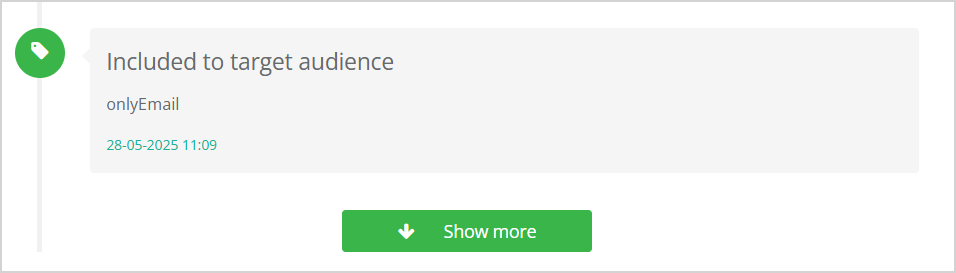
| By clicking Show more, additional events are displayed. |
|
You can filter the displayed data by category. For example, to view only receipt-related events, uncheck all other categories. For the events like "Receipt was issued to customer", there is an option to click View receipt to see all receipt details. |

|
Receipts
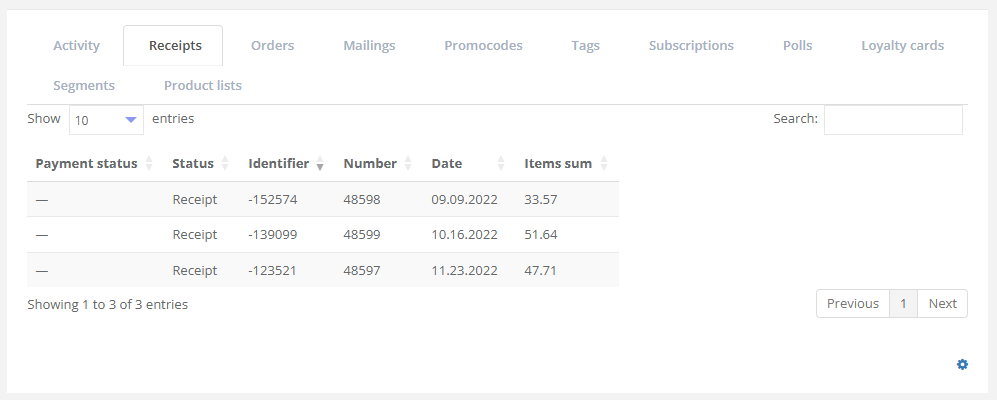
You can view information about all receipts issued to the customer in the Receipts (Cheques) tab. For each receipt, the following details are available:
|
|
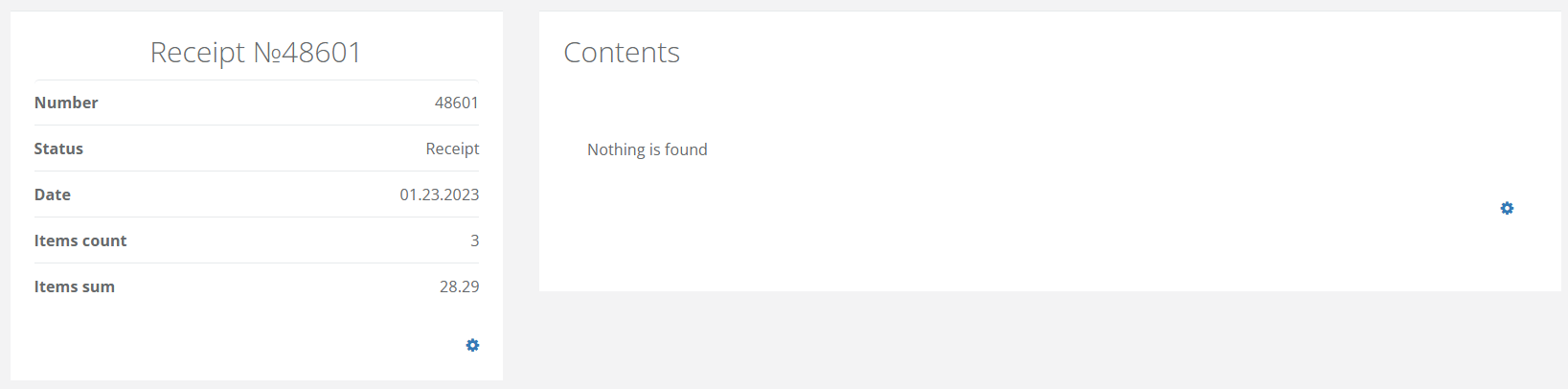
Receipt detailsWhen clicking on a receipt line, the following information is displayed:
You can customize the set of fields in each block. |
|
Orders
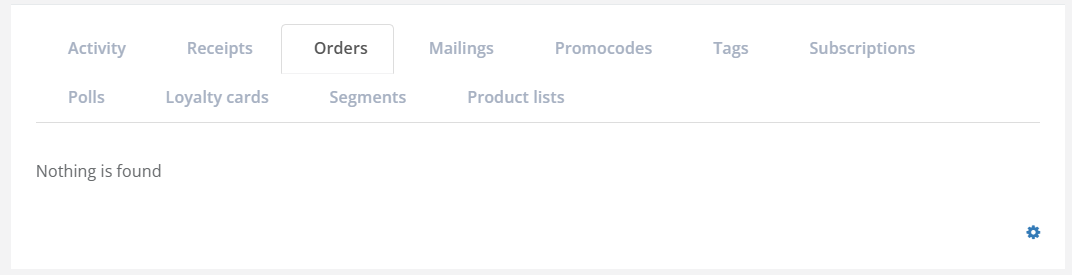
In the Orders tab, you can view information about all customer orders, including payment details (whether a receipt has been issued or the order is still unpaid), delivery, number of items, and cost of products in the order. There is also an option to configure a list of attributes for orders. |
|
Order DetailsWhen clicking on the order line, the following information is displayed:
You can customize the set of fields in each block. |
Mailings
The information about all mailings the customer has participated in is displayed in the Mailings section. Click the mailing name to open the page with corresponding mailing details. If the customer was part of a control group, the icon |
|
 will be displayed beside the name of the mailing.
Promo codes
The Promo codes section lists all promo codes issued to the customer within mass messaging or campaign. Click the mailing/campaign name to open the page with a detailed information. The Is reissued? field indicates whether the promo code was issued for the first time or reissued. |
|
Tags
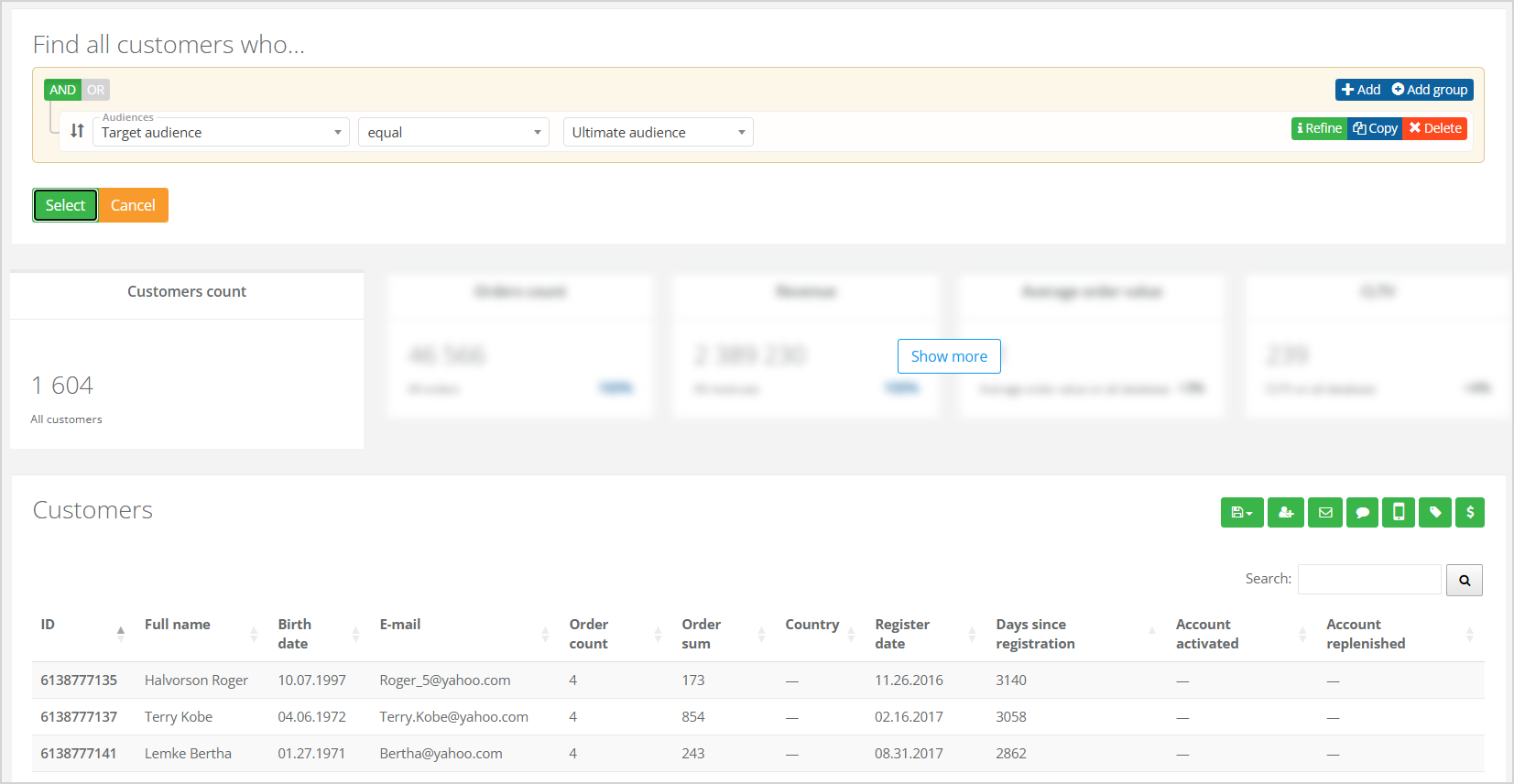
The Tags section displays all target audiences the customer belongs to.
|  |
| Click on a tag name to open a list of customers with that tag (see image to the right). |
|
Subscriptions
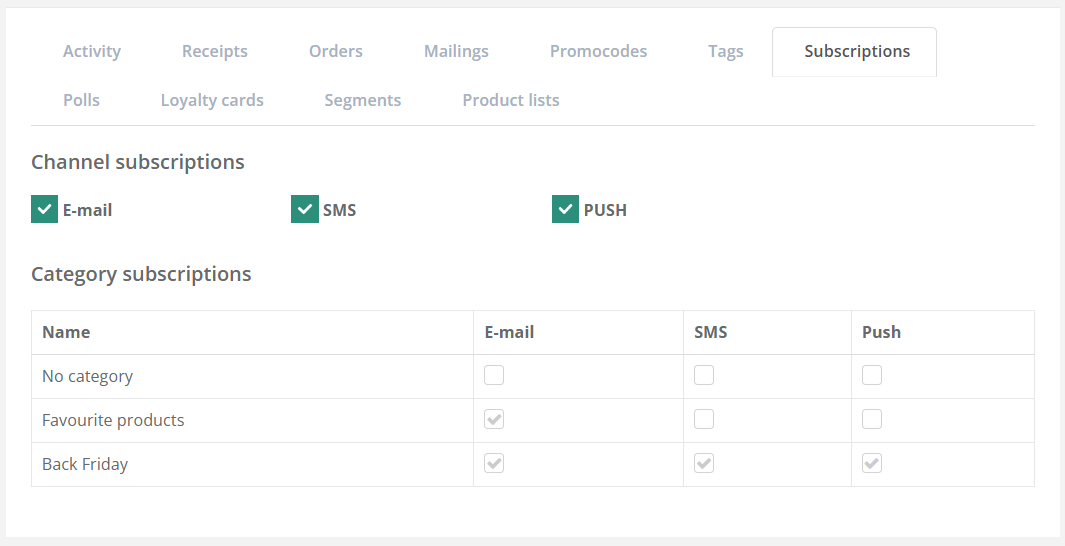
The Subscriptions section displays customer subscription information. Available settings include:
Only active categories are displayed in the Subscriptions section. |
|
Polls
| The Polls section displays information about all polls the customer has participated in. |

|
| Click on a poll name to open the Poll result page. | |
Favorite points of saleThis is an additional feature available upon request. The Favorite points of sale section displays information about points of sale where the customer made purchases. The following data is shown for each point of sale:
| |
Abandoned cartThe Abandoned Cart section displays information about products added by the customer to the cart but not purchased. The following data is shown for each product:
| |
Category interestThis is an optional feature available upon request. The Category Interest section displays information about the customer interests. Customer interest is calculated based on website activity — specifically, which product categories the customer viewed. Only recent views within the last few days are considered. The number of days is set in General settings. The parameter Calculate customer interest for the last X days should be specified in the Advanced Settings. For example, if a customer viewed a 24-inch monitor on the website, it means that the customer is interested in the "24-inch monitors" category for the next X days — unless a purchase was made in that category.
Only the top 10 interests are displayed on the page. |