
4.3. Push mass messaging
Push mass messaging module allows to send push notifications to a group of customers.
|
|
Push mailing parameters
Filling out push mailing parameters consists of the following steps:
- Setting up A/B testing in the mailing, if required.
- Filling out the message parameters. In case of A/B testing, it is necessary to fill in several variants of the message.
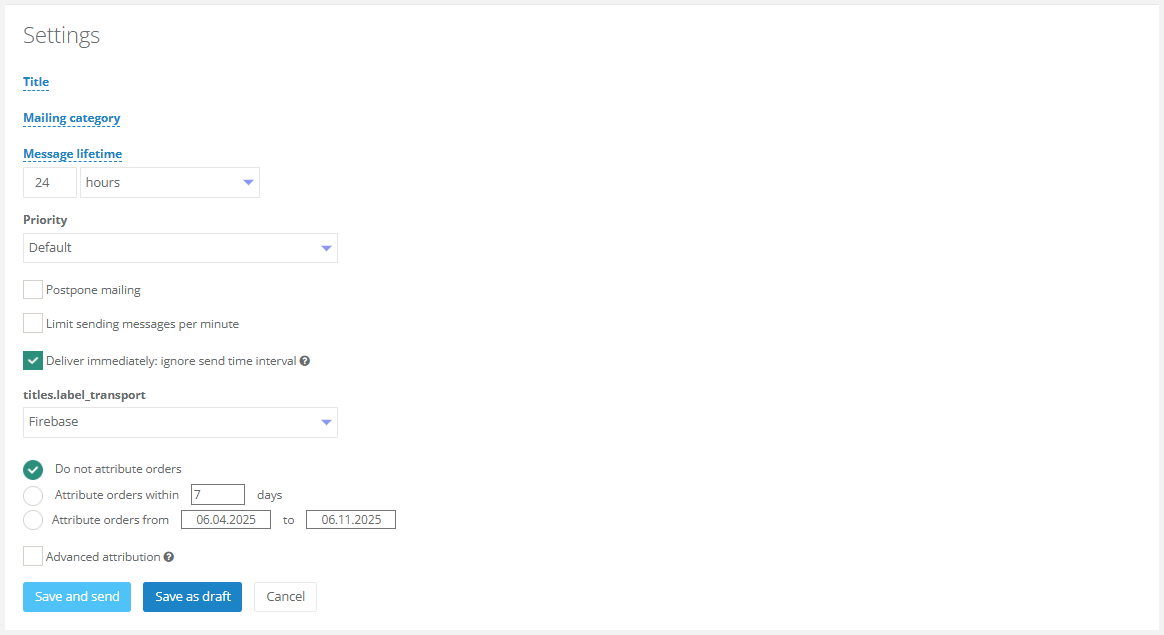
- Filling out the mailing settings.
Message parameters
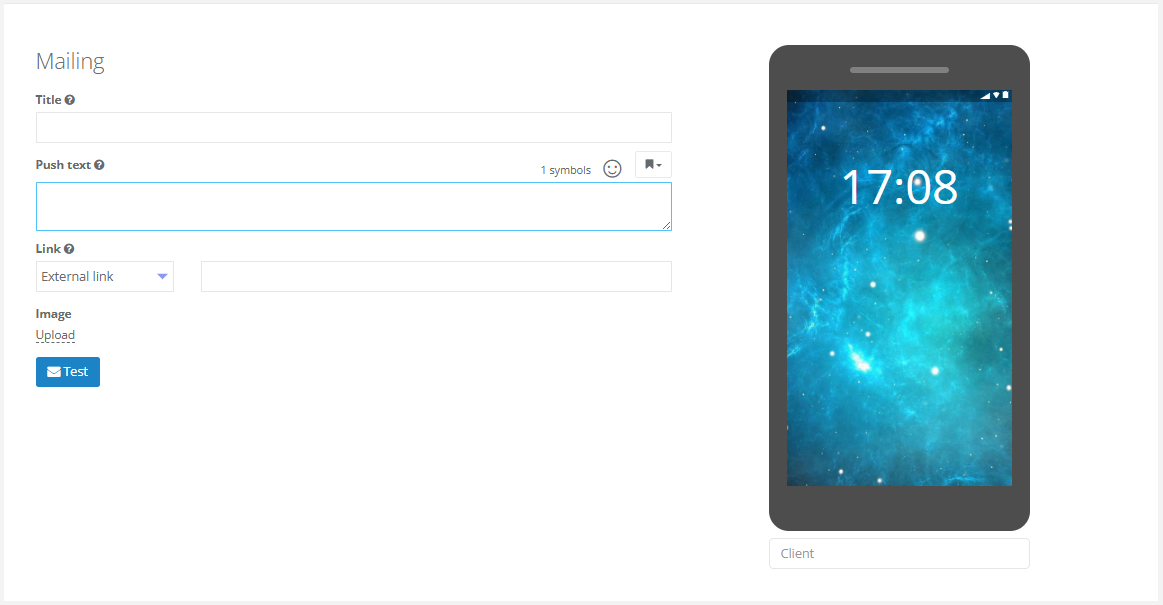
Fill out the main fields for message sending:
- Specify the mailing title.
- Fill in the push text. There is an option to use the Template Engine constructs in the text body.
- Specify the external link or deep-link, if there is a need to redirect customers to another resource or page in the Mobile App.
- There is an option to upload the image (if needed). Smart Communications does not have any restrictions on the image size, except for the Nginx file upload limit — 32 MB. However, Google FCM does have file size limitations. If the payload exceeds the allowed size, Firebase may respond with the ‘Message Too Big’ error for the entire request. To avoid such issues, we recommend following the guidelines below for image size in push mailings:
- Image format: PNG or JPG.
- Recommended image size: up to 300 KB.
- Image aspect ratio: 2:1.
- Maximum image size: 800 pixels.
- Maximum image width: 1,000 pixels..
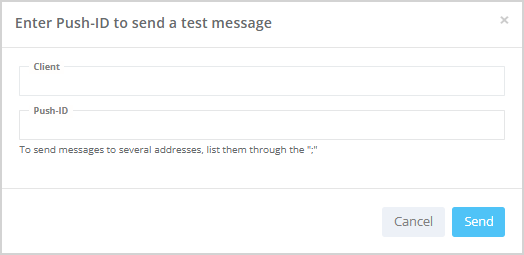
After filling out the message parameters, you can send a test message. To do this, click Test. In the opened window specify the Push-ID and click Send.
 |
Mailing settings
All types of settings have the same set of settings. Detailed description of mailing settings can be found in a separate article.