
5. Polls
The Polls module allows to conduct surveys among customers registered in the System.
Contents:
- Creating a poll
- Sending a poll to customers
- Poll results
- Working with polls in the Customer Profile
- Using polls in the Segment Builder
The poll consists of one or more questions for which a certain number of answers are available. Information on the customer participation in the poll and the selected answers is saved in the Customer Profiles. This information can then be used in the Segment Builder.
Customers receive a link via email, SMS or Push mailings by clicking on which they can take a poll. Each customer can take the same poll only once. Should the customer attempt to take the same poll again, they will receive a message that it is impossible.
The list of all created polls can be viewed in the Polls section of the main menu. The following parameters are displayed for each poll:
- Date;
- Poll — contains an automatically generated identifier (identifier example: POLL-151) and name of the poll;
- Questions count;
- Number of respondents.
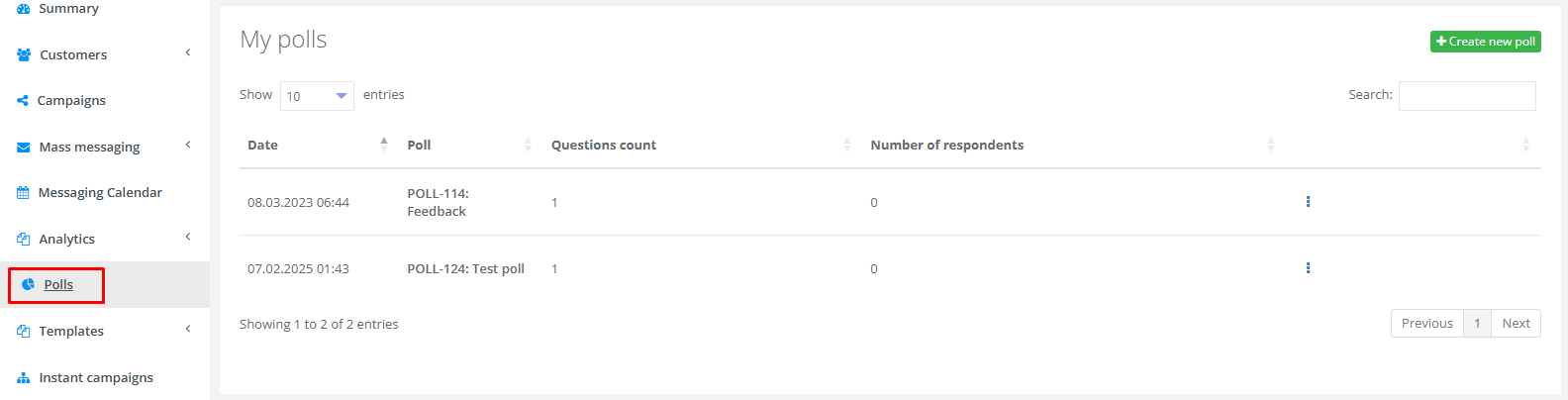
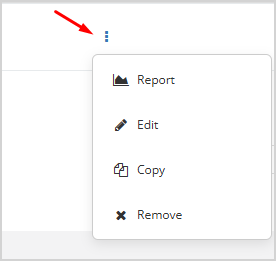
If to click on three dots at the end of the poll line, the following actions become available with the respective poll:
|  |
Creating a poll
To create a poll, select the Polls section in the main menu and create a new poll by clicking the Create new poll button.
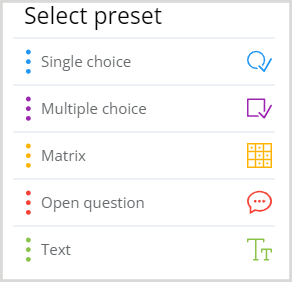
| The poll may contain one or more of the following types of questions: |
|
|

|
|
|
|

|
|

|
|

|
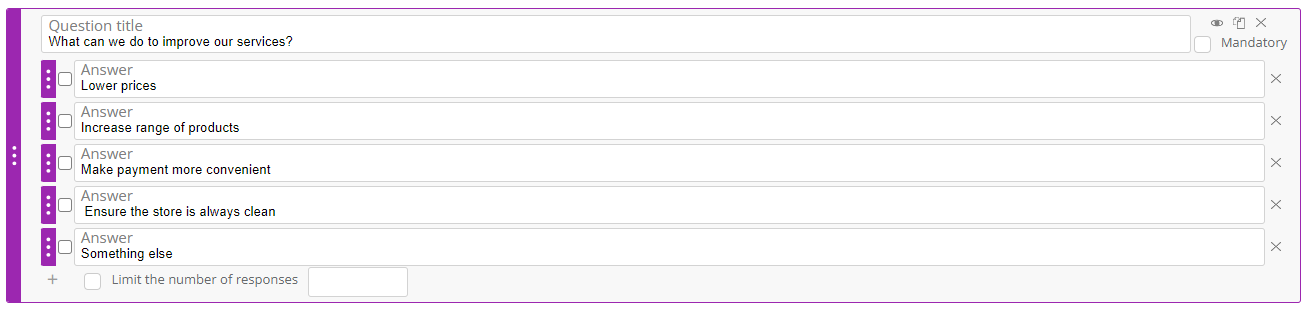
| To select a question type, drag it from the right column of the menu to the main field for poll generation. In each preset you can customize the following:
|

|
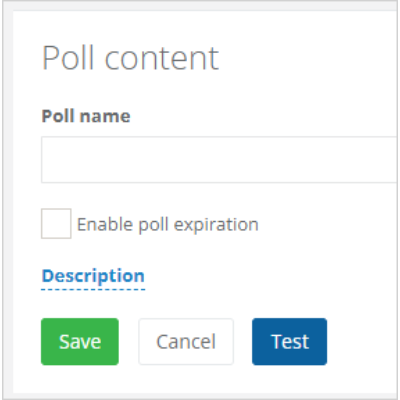
The poll can be saved, canceled or tested. The test allows you to check how the poll will look to customers, and whether it works with the in-built logic (conditions for the question visibility). |
|
Sending a poll to customers
The poll can be delivered by any communication channel: email, SMS, push message. The delivery process takes place in two steps:
- Users create and save a poll following the instructions above.
- Users generate a mailing to deliver a message (containing a link to the poll) to customers. There is a need to insert a link to the poll in the mailing using the macro, where POLL-identifier = is the value of the poll identifier:
{{client.poll('Poll-identifier')}}
The link address of the following form will be generated:
https://app.loymaxsc.net/vote/?unique_poll_identifier_for_client
A unique link is generated for each сustomer.
In the email mailing you can make a link clickable and change the link text in two ways:
Method 1
Proceed to editing the source code:

|
And generate a code that looks like:
<a href="{{client.poll('POLL-identifier')}}">link text</a>
In this case, an HTML code of the following form will be generated:
<a href="https://app.loymaxsc.net/vote/?unique_poll_identifier_for_client">link text</a>
Method 2
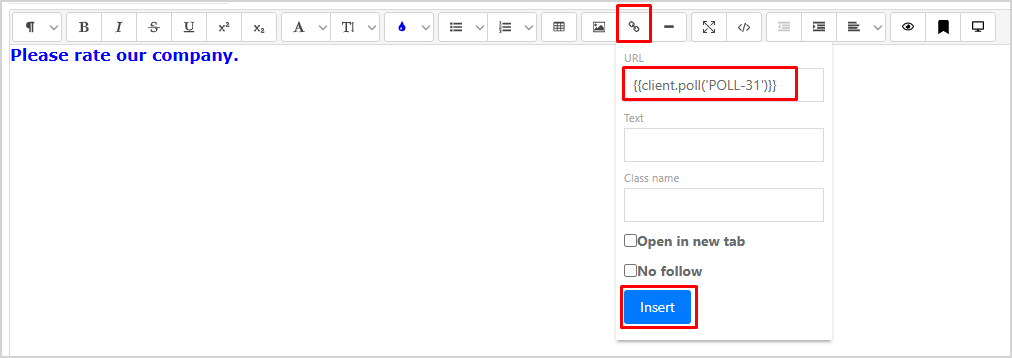
Select the required word and select Insert a link in the top panel. In the URL field, insert the macro, where POLL-identifier is the value of Poll identifier:
{{client.poll('POLL-identifier')}}
Then click Insert.
The image below shows an example of sending a link to a poll by email using method 2.
Example of sending a link to a poll by SMS:

Poll results
To view the poll results, select the required poll from the list of polls and click the Report button.
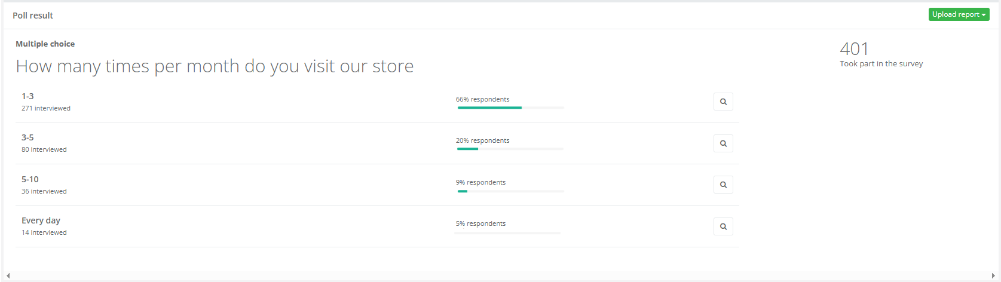
The page displays the following information:
- Question text;
- A list of answer options, the number and percentage of customers for each option.
There is a "magnifying glass" icon next to each option for downloading a list of customers who have chosen this option. If there are several questions in the poll, their results are displayed being grouped by question one below the other.
The Poll report is available for exporting to a file. Available options for exporting the report data:
- Raw data,
- Aggregated,
- Aggregated by points of sale.
Formats for export: CSV (UTF-8), CSV (Windows), .XLS, .XLSX, .ODS, HTML.
Working with polls in the Customer Profile
The Polls tab in the Customer Profile provides an overview of the polls assigned to this customer and how the customer responded to each question.
Using polls in the Segment Builder
Polls data can be used for filtering when building segments in the segment builder (for example, "Show customers who chose answer Z to question Y in poll X"). The Segment Builder uses the Polls group to work with poll data. Available group filters:
- Participated in the poll;
- The answer value in the poll.
Example of segment generation based on the poll data:
 |
In this example, the segment will be based on the condition "Participated in the poll". The segment will include the customers who took part in the poll 'How many times per month do you visit our store".