Orders
An Order is a customer request for a product or service placed via a website or mobile application.
Unlike a receipt, which records the fact of payment and the list of purchased items, an order contains a broader dataset: customer information, order value, order statuses, fulfillment details, payment, and delivery data, as well as order contents. Like receipts, orders are used for building segments for subsequent communications with customers and serve as the basis for analyzing purchasing behavior and generating reports.
Order structure
In addition to standard data typical for receipt entities, orders have the following attributes:
- Statuses—three status types are available for each order. Users can create statuses of the respective types in the section Settings > Order statuses.
- General: includes general stages of the order lifecycle. For example: received, confirmed, in progress, completed.
- Delivery: includes stages related to order delivery. For example: being assembled, shipped, at pickup point, delivered.
- Payment: includes stages related to order payment. For example: invoice issued, awaiting payment, paid.
- Delivery block
- Delivery status,
- Delivery type: courier, self-pickup, pickup point,
- Provider: shipping carrier handling order delivery,
- Address: country, city, street,
- Date and time,
- Customer note.
- Payment block
- Payment status,
- Payment type: card, cash, cash on delivery,
- Payment provider: multiple payment providers can be configured,
- Order amount information:
- Total order amount,
- Cash payment,
- Bonus payment,
- Delivery cost,
- Discount.
- Order contents block
- Number of items,
- Item cost,
- Order line total,
- Item weight,
- Discount amount,
- Bonus accrual and deduction,
- Cash amount.
All the above order attributes can be used for customer communications via mass messagings and marketing campaigns.
Order functionality integration
Order functionality integration is performed by contacting Loymax specialists and includes the following steps:
- Enable the EnableShopEorders feature flag, which activates visibility of tabs and toggles for orders/order lines across various System sections.
- Configure fields to match the Partner's business processes.
- Configure order statuses.
- Testing.
Instructions for working with order functionality can be found in the relevant sections:
Analytics and reports | You can switch between receipts and orders (provided both functionalities are enabled) in all reports for mass messagings and campaigns, including the dashboard, as well as consolidated reports in the Analytics section. | ||||
Attribution | Attribution is a configurable criterion that links orders to communications sent to the customer. Similar to receipt attribution, order attribution is available for mass messagings and campaigns. | ||||
For customizing message text in mass messagings and campaigns, the following template engine macros are supported for order functionality:
| |||||
API methods for working with orders | The following API methods are available for working with orders:
| ||||
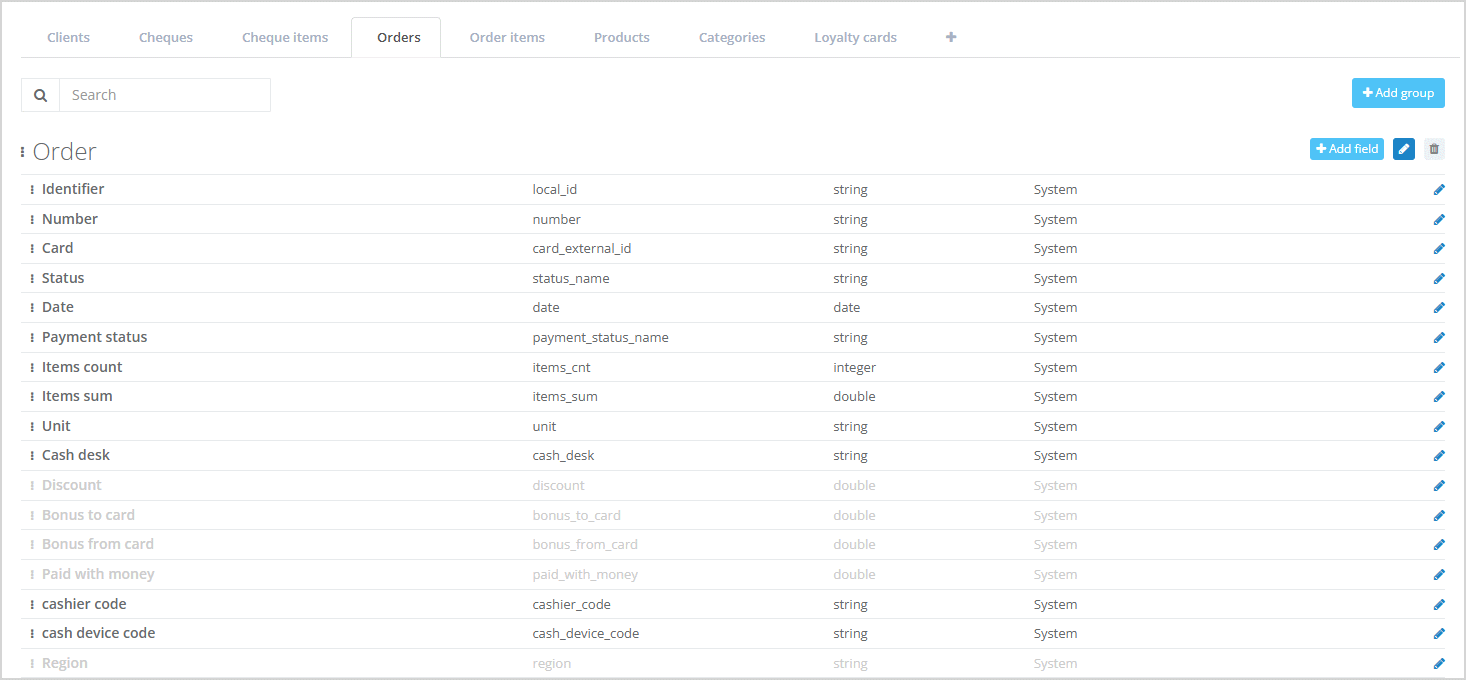
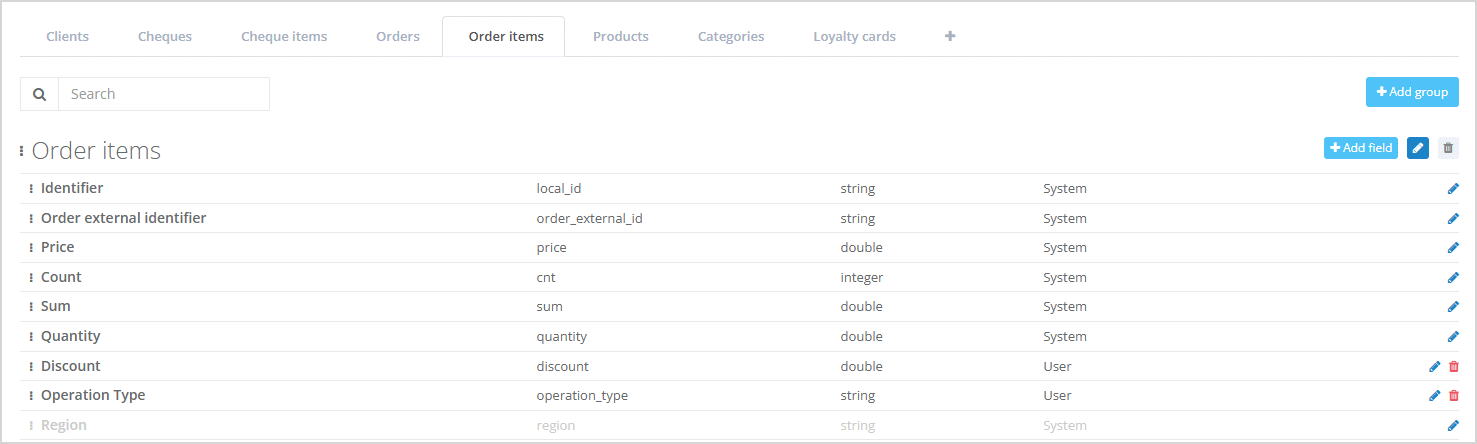
The fields configuration section allows managing the set of fields for orders and order lines. System fields are present by default. Users can also create custom fields for orders and order lines, which can be deleted or edited.
It is also possible to manage field display: for orders and order lines, you can change which fields are displayed in the customer profile and in what order. | |||||
For customer segmentation using order data, the Segment builder provides the following filters:
| |||||
| |||||
Viewing and creating order statuses is available in the Settings > Order statuses section. Three status types are available for orders:
| |||||
Triggers for orders | A Trigger is an event that activates a campaign. The following triggers are available for order functionality: | ||||
In customer lists within the Segment builder and consolidated reports in the Analytics section, you can export order and order line data to a file. |