
5. Surveys
The Survey module allows you to conduct surveys among customers registered in the System.
Article contents:
- Creating a survey
- Sending the survey to customers
- Survey results
- Survey responses in the customer profile
- Using surveys in the segment builder
A survey consists of one or more questions. Information about the customer's participation in the survey and their selected answers is saved in the customer profile. This information can then be used in the segment builder.
The customer receives a link via email, SMS, or push message. By clicking the link, they can take the survey. A customer can take the same survey only once. If they attempt to take it again, they will receive a message stating that this is not possible.
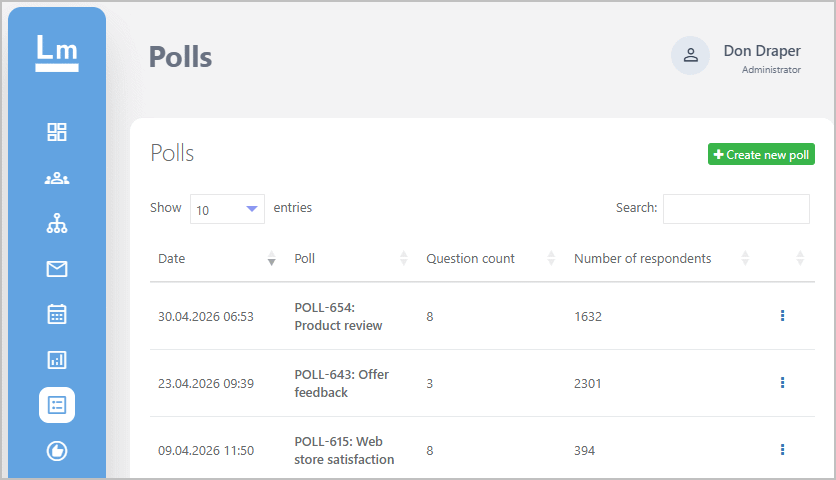
You can view the list of all created surveys in the Surveys section of the main menu. The following parameters are displayed for each survey:
- Date;
- Survey — contains an automatically generated identifier (example identifier: POLL-151) and the survey title;
- Number of questions;
- Number of respondents.
|
The action menu ( ) on the right side of the page provides the following actions for each survey:
- View report for the created survey;
- Edit;
- Copy;
- Delete.
Creating a survey
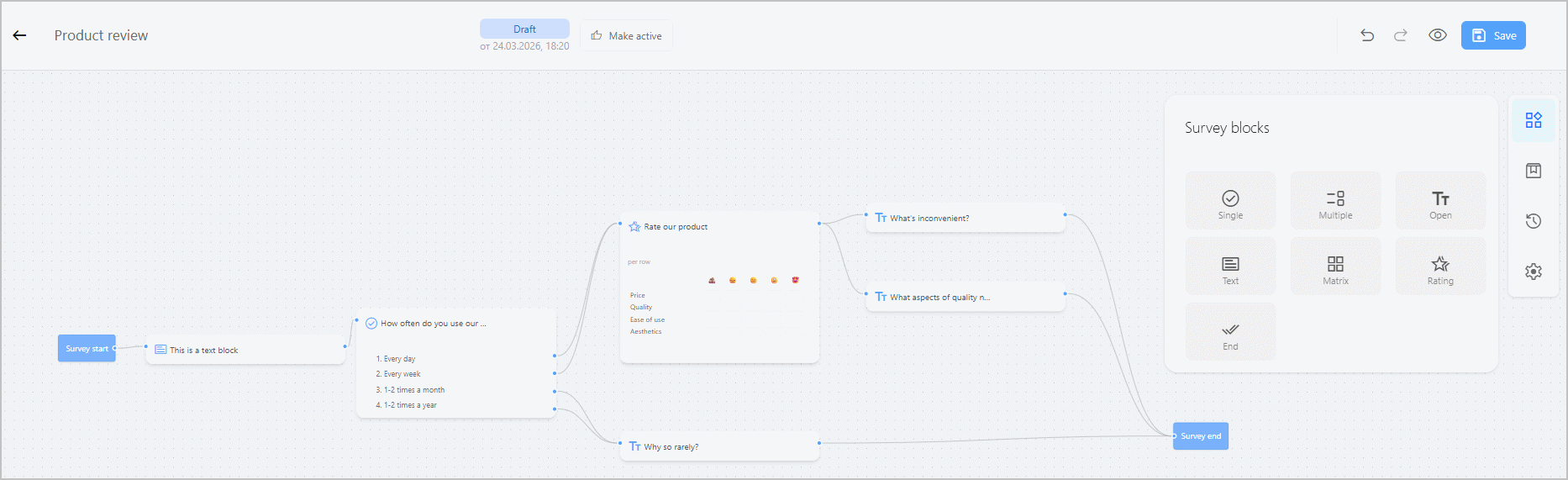
To create a survey, select the Surveys section in the main menu and create a new survey there (click the Create new survey button) — see the image above.
|
Depending on the survey version, the toolbar at the top of the screen provides the following options:
|
|
 /
/ ) — available for drafts. Undoes the last change / redoes the last undone change.
 ) — available for drafts. Allows you to take the survey in test mode.

The following controls are available in the bottom left corner of the main survey editor area:
- Zoom in/out (
 /
/ ) — changes the display scale of the survey. You can also change the zoom level using the mouse wheel while holding down the Ctrl key.
 - Fit to size (
 ) — changes the scale and centers the editing area so that all survey blocks fit on the screen.
 - Lock/unlock editing (
 /
/ ) — allows you to switch between view and edit modes.
Survey blocks
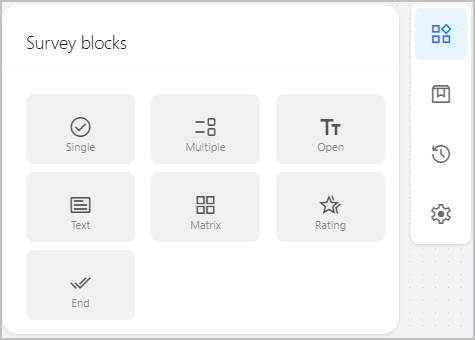
To add a question, select Survey blocks on the right-hand toolbar and drag the desired block type into the main survey area. Descriptions of the available question types are provided below. You can also add a text block or a survey completion block—for example, for surveys with many branches, to avoid having to draw connections from each branch to a single completion block. Left-clicking a survey block opens the block editing window. Right-clicking displays an action menu with the following items:
|
|
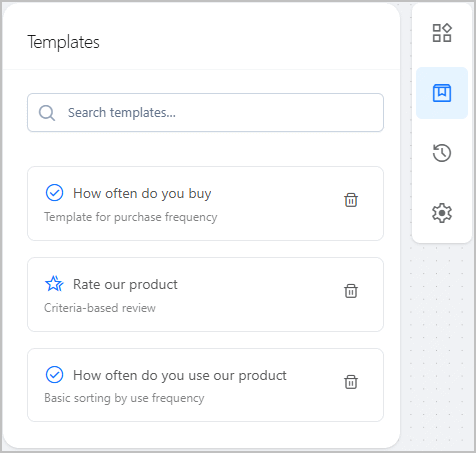
Saved blocks are displayed on the Templates tab of the right-hand toolbar. To add a saved block to a survey, drag it into the main area. |
|
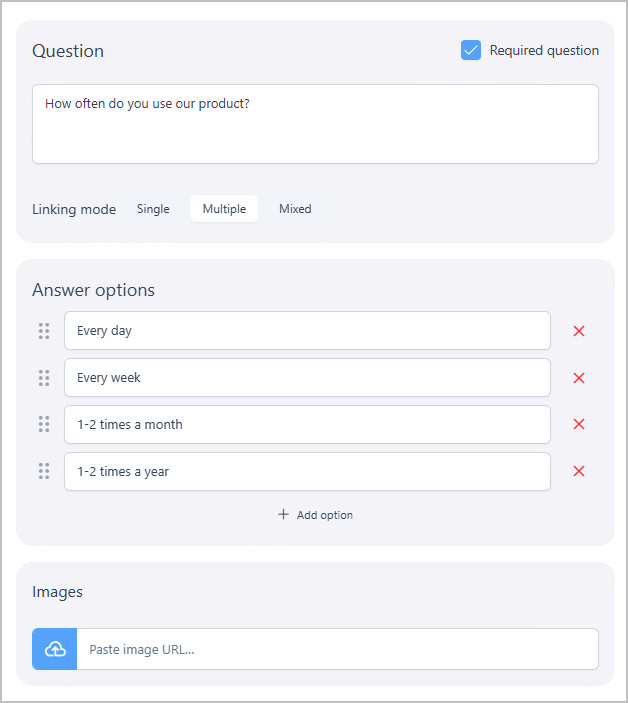
Single-choice questionA question with answer options where only one can be selected. To add an answer option, click + Add option. To delete an answer option, click the delete icon ( For single-choice questions, the Linking mode setting is available:
|
|
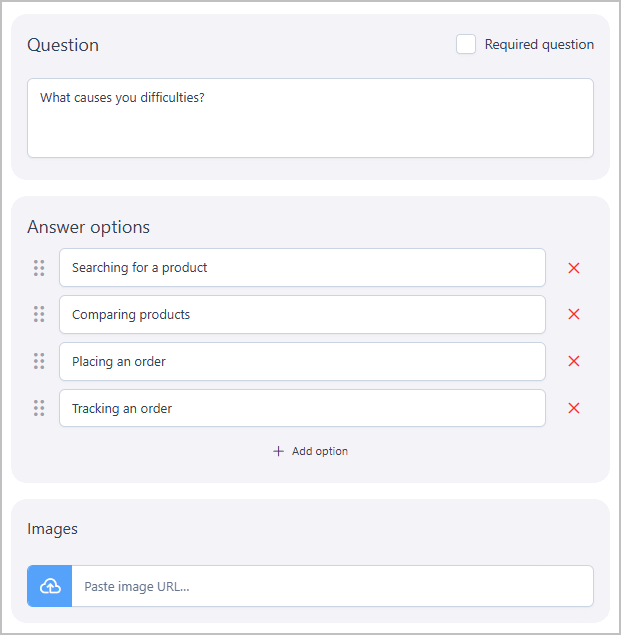
Multiple-choice questionA question with answer options where any number of options can be selected. To add an answer option, click + Add option. To delete an answer option, click the delete icon ( The question has one exit point, which can be linked to the inputs of multiple blocks by configuring transition conditions. |
|
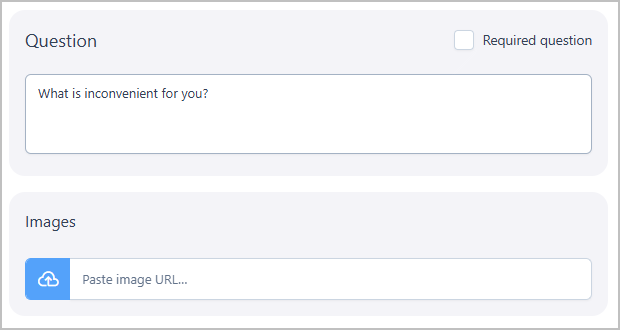
Open-ended questionA question without answer options. The customer enters a free-form response in a text field. The question has one exit point. Transition conditions are not provided. |
|
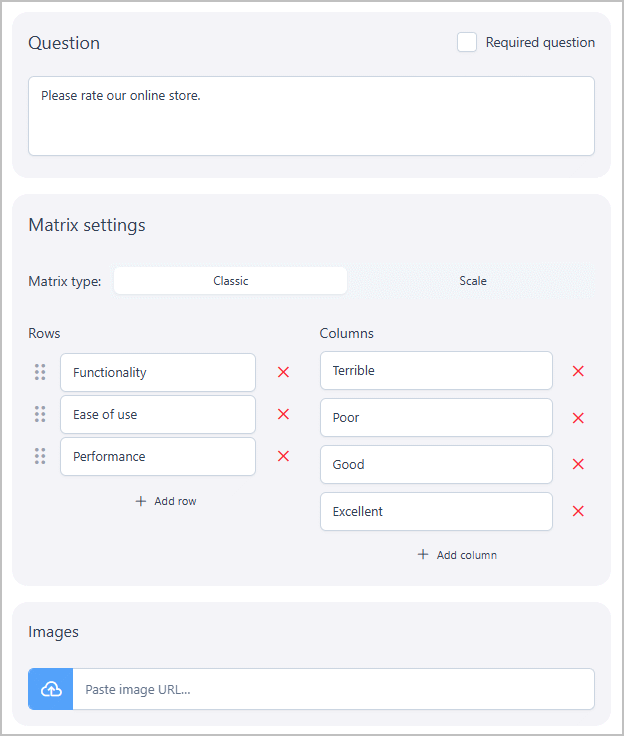
MatrixA question that asks respondents to rate several characteristics on an N-point scale. The characteristics to be rated are presented as rows, and the ratings as columns. Two types of matrices are available:
To add a row/column, click + Add row / + Add column. To delete a row/column, click the delete icon ( The question has one exit point, which can be linked to the inputs of multiple blocks by configuring transition conditions. |
|
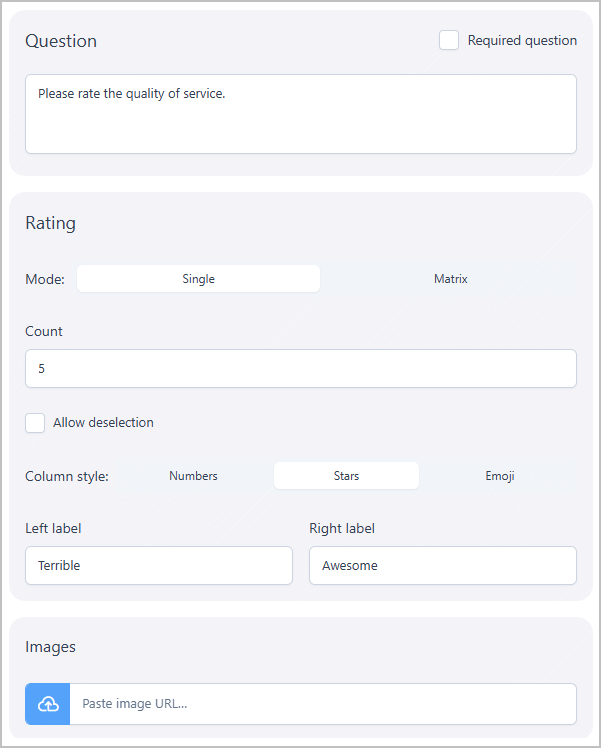
RatingA question that asks respondents to rate several characteristics on an N-point scale. The Number and Column style can be configured (similar to the matrix question). In Single mode, the customer is asked to rate a single criterion formulated in the question itself. Optionally, you can set labels for the far-left and far-right elements of the scale to clarify the rating logic for the customer. In Matrix mode, you can specify several criteria for evaluation. This mode is similar to the matrix question (Scale). The question has one exit point, which can be linked to the inputs of multiple blocks by configuring transition conditions. |
|
 ) — opens the block editing window.
 ) — adds a copy of the selected block.
 ) — saves the block for later use in other surveys.
 ) — removes the block from the survey.
 ) to the right of the desired option. To change the order of options, drag and drop them by clicking and holding the icon (
 ) on the left.
Transition conditions
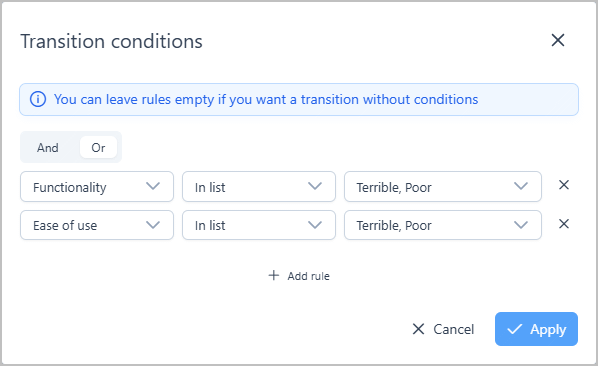
When adding a connection between questions, a transition condition settings window will appear if the source question type allows it. For the first added transition, setting conditions is optional. When adding a second transition from the same source question, you must specify conditions. In this case, the first added transition may remain without configured conditions. You can use this feature to implement "if... else" scenarios: if the conditions are met, go to question B; otherwise, go to question A. If a question has one transition and transition conditions are configured, the customer will proceed directly to the end of the survey if the conditions are not met. You can also open the transition conditions window by right-clicking the desired connection. Conditions are combined using the logical operators AND or OR. The image on the right shows an example of configuring transition conditions from a matrix or rating question: the customer will follow this connection if they gave a low rating for either the functionality criterion or the ease of use criterion. |
|
Working with survey versions
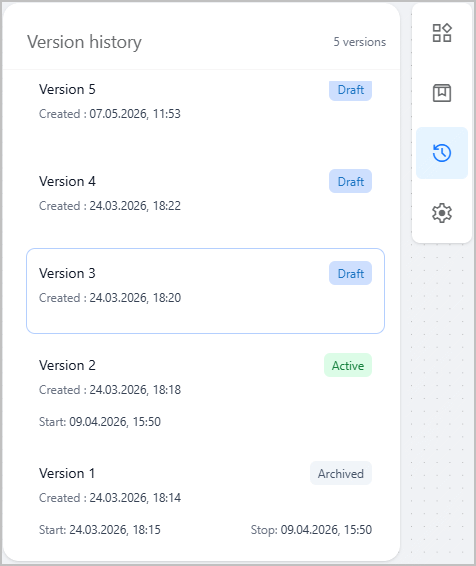
Each survey can exist in multiple versions. A survey version can have one of three statuses:
The creation date is displayed for each version. For active and archived versions, the start date (when it was made active) is also displayed, and for archived versions, the stop date (when it was archived) is shown as well. Editing is only available for drafts. When viewing a current or archived version, you can click the Edit button on the top toolbar to create a draft that is a copy of that version. The preview function is available for drafts. Click the preview icon ( You can make a draft or archived version active by clicking the Make active button on the top toolbar. If the survey already has an active version, it will become archived. Completion history is available for active and archived versions. Only data related to that specific survey version will be shown. |
|
Survey settings
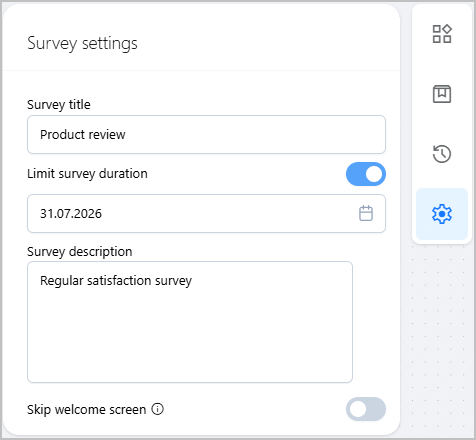
In the Survey settings section, you can configure the following settings:
|
|
Sending the survey to customers
Once the survey is created and one of the versions is made current, you can deliver the link to it using any mass messaging channel (Email, SMS, Push, etc.) or a message sending action within a campaign. To do this, add the following macro to the message text:
A unique link is generated for each customer.
Survey results
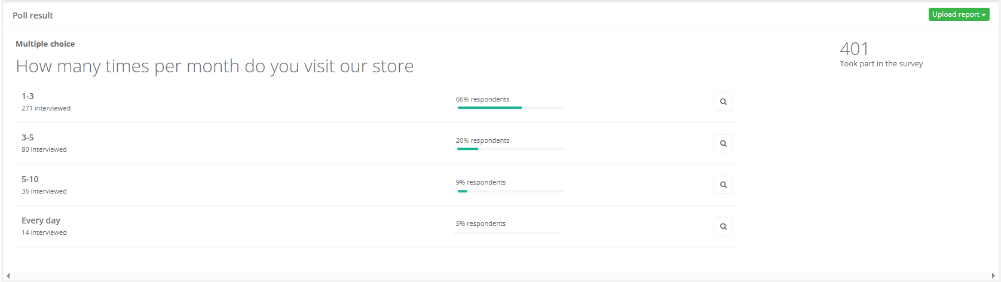
To view survey results, select the desired survey from the survey list and click the Report button for it.
|
The page displays:
- The question text.
- A list of answer options, along with the number and percentage of customers for each option.
- Next to each option is an icon (
 ) for downloading the list of customers who selected that option. If the survey contains multiple questions, their results are displayed grouped by question, one below the other.
The survey report can be exported to a file. Possible data export options for the report include:
- Raw data,
- Aggregated,
- Aggregated by points of sale.
The following export formats are supported: CSV (UTF-8), CSV (Windows), XLS, XLSX, ODS, HTML.
Survey responses in the customer profile
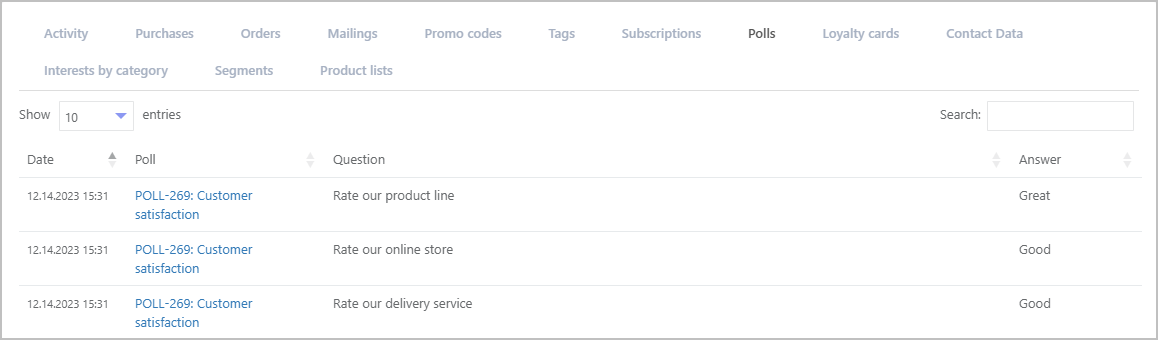
In the customer profile, on the Surveys tab, information is available about surveys sent to the customer and how the customer answered each question:
|
Using surveys in the segment builder
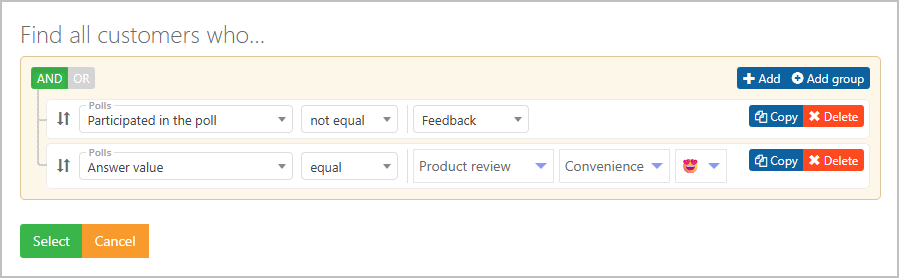
Survey data can be used for filtering when building segments in the Segment builder (for example, "Show customers who selected answer Z for question Y in survey X"). The Surveys group is used in the segment builder to work with survey data. The following filters are available in the group:
- participated in the survey;
- answer value in the survey.
Below is an example of creating a segment based on surveys:
|
In this example, the selection will include customers who did not take the "Feedback" survey but participated in the "Product review" survey and gave a high rating for the convenience criterion.