
Control groups
The control group mechanism helps to assess the impact of communications on customer behaviour within a segment by comparing key metrics (conversion to purchase, average receipt value, average income per customer) between customers who received communication and those who did not.
This mechanism allows to select a small group from the target communications segment. This is usually 5 to 10% of the segment size. The control group does NOT receive communication, and the platform calculates indicators for this control group just like for the main group that received communication.
During the post-analysis, the platform determines the income the main group would have achieved without receiving communication.
Creating a Control Group
Control groups can be used in all types of mass mailings (email, SMS, push) and in campaigns.
In Mass Mailings
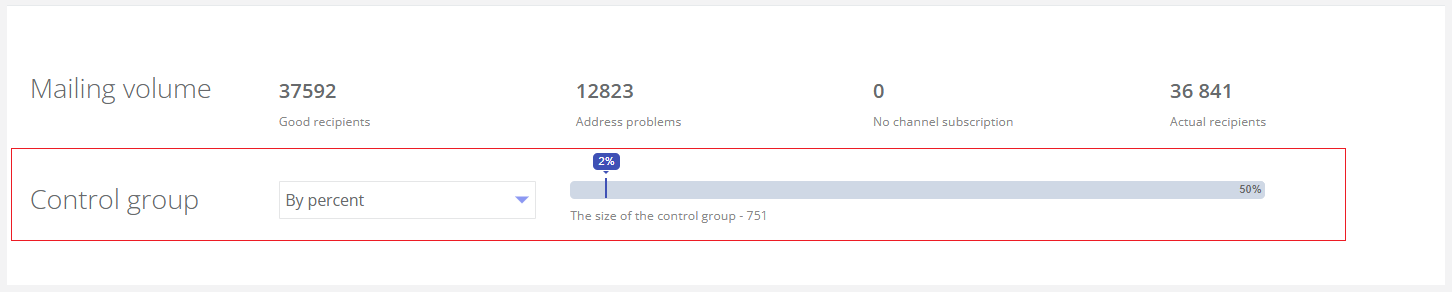
When creating a new mailing the Mailing Volume block appears after adding customers to the segment. To create a control group, use the Control Group Size slider in the Mailing Volume block.
|
The size of the control group can be specified:
- By percentage — within a range from 0 to 50% of the target segment (by default — 0%). The number of customers included in the control group is displayed.
- By target audience. When this option is selected, a list of existing target audiences will appear for selection as a control group.
In Campaigns
When creating a campaign, to set up a control group, click the control group icon. In the opened window specify the Control Group Size:
|

|
Reports on Control Groups
The control group report is available on the same page as all other mailing reports or campaign reports.
The table displays the following information for each group:
- Number of recipients — how many messages were sent within the group;
- Messages delivered — how many messages were successfully delivered to the group;
- Number of customers who made a purchase;
- Conversion to buyers — what percentage of customers who got the mailing made a purchase because of it;
- Number of receipts in the group;
- Average number of receipts per buyer;
- Total purchase amount;
- Average revenue per buyer;
- Revenue forecast based on control group conversion and average receipt value — the estimated revenue if no communication had been sent:
- Calculated only for the main group.
- Equals (Messages delivered) * (Purchase conversion rate in the control group) * (Average revenue per buyer from the control group).
For example, the report shows:
99,048 people received the mailing. If no mailing had been sent, the conversion to buyers would have been 8.99%, the same as in the control group. Taking into account this conversion rate: 99,048 * 0.0839 = 8,310 customers would have made purchases. The control group's average revenue per customer is 17 USD. So, without a mailing the amount of purchases would be 8,310 x 17 = 141,270.
- Additional revenue — the benefit gained from the mailing:
- Equals (Total purchase amount in the main group) – (Revenue forecast based on control group conversion and average receipt value).
For example, the amount of all purchases in the main group is 176,029 USD and the revenue forecast is 148,368 USD. The difference is 27,662 USD.
Control Groups in the Segment Builder
There is an option to use filters in the segment builder that are associated with control groups (CG):
- Participated in CG of email mailing;
- Participated in CG of SMS mailing;
- Participated in CG of push notification mailing;
- Participated in CG of the campaign.
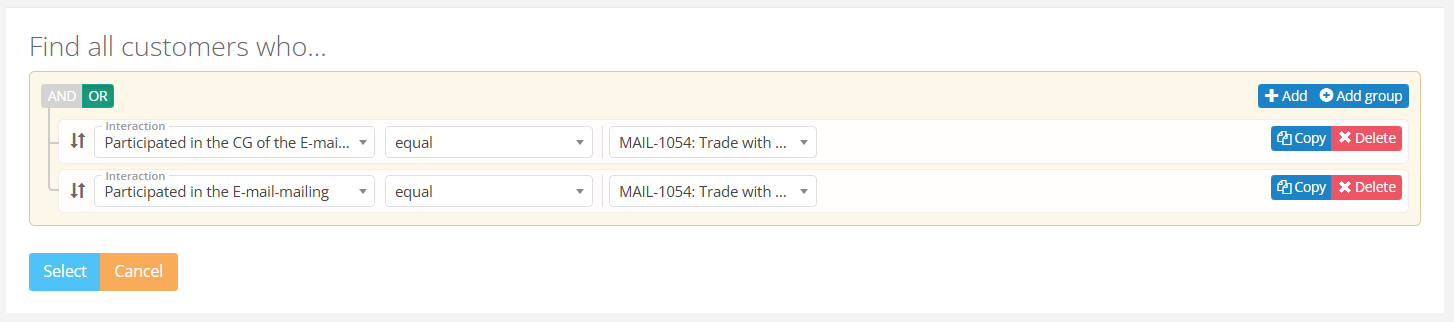
The filters Participated in email mailing, Participated in SMS mailing, Participated in push mailing, and Participated in CG of the campaign do not include control group members in the segment for campaigns or mailings with a control group.
If you need to select the entire campaign/communication segment (control group + main group), then you need to apply two filters using the logical operator OR. Example:
|
See also: