
3.4. Campaign report
If a mass messaging is sent as part of a campaign, you can view its report. To do this, go to Campaigns in the left navigation menu, select the campaign, and click Report.
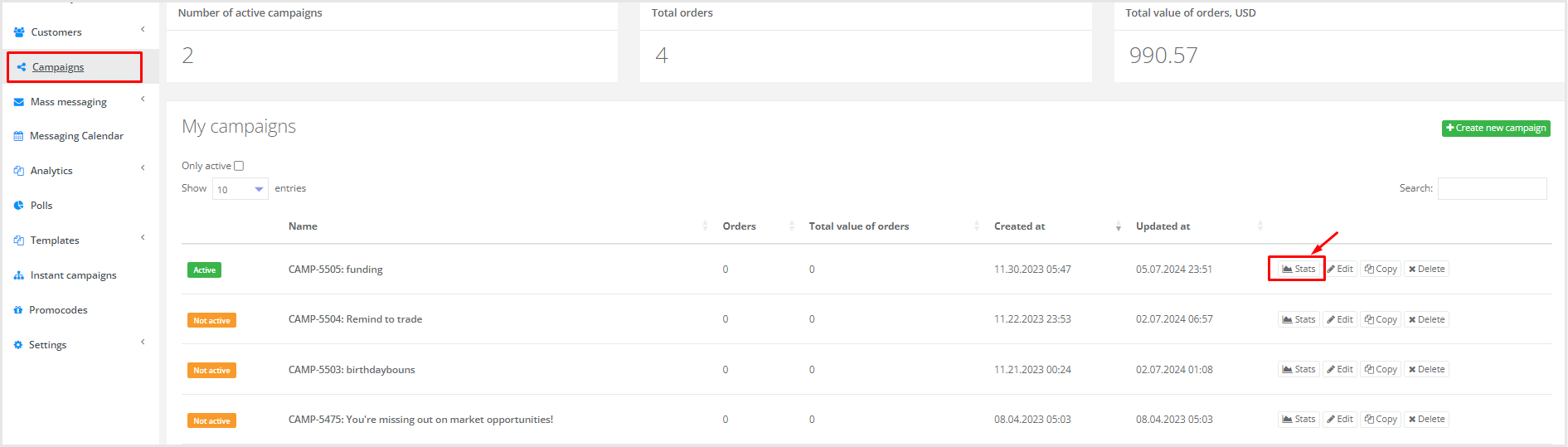
|
The campaign report resembles the mailing report but has specific features. It consists of 5 blocks:
- Orders;
- Control group report;
- Email opens by hour;
- Mailing efficiency;
- Product sales (not available by default).
Multiple communication channels in a campaign
A campaign may include multiple communication channels. In this case, you can view Mailing effectiveness for the entire campaign or for email/SMS/push individually.
By default, the report shows data for all channels:

|
To view the report only for SMS mailings within the campaign, click the SMS icon:
|
|
Action-level campaign report
If multiple mass messagings were sent within a campaign, you can view separate statistics for each. To do this, on the Campaigns page, enter campaign editing mode by clicking Edit:

|
| Select the mass messaging action for which you want to view the report. Enter the action’s editing mode by right-clicking it and clicking the edit icon. | 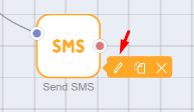 |
Click View report at the bottom of the opened window. The report layout matches the standard mailing report exactly. | 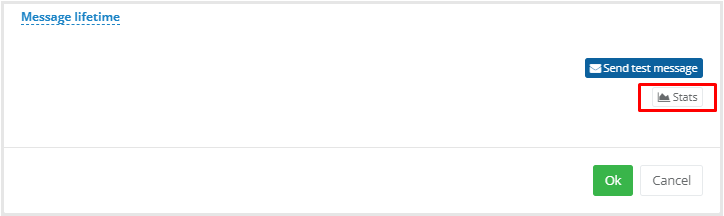 |