
3. Campaigns
|
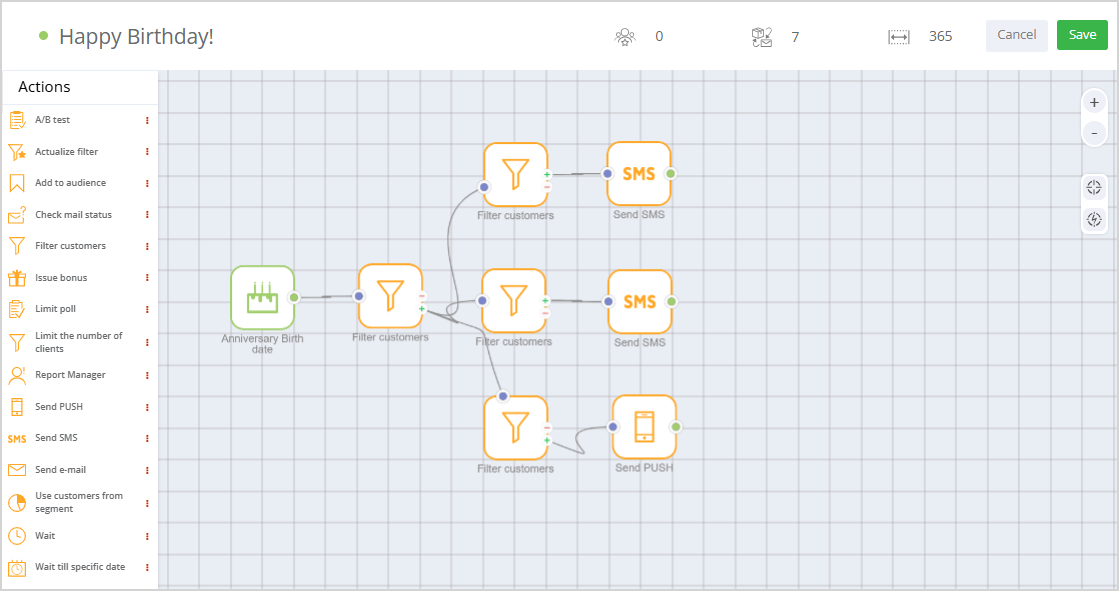
Campaign example:
If a customer has made an order:
- Wait for one hour.
- Send an email.
- Wait for three days.
- If the email has not been opened, send a text message to the customer, if the phone number is available.
There is an option to set rules for a campaign to limit the number of customers that cab be added to a chain. For example, you can allow for customers to re-enter the campaign not earlier than in a year. For more information, refer to a separate article.
It is also possible set up attribution rules for a campaign to associate receipts with this campaign.
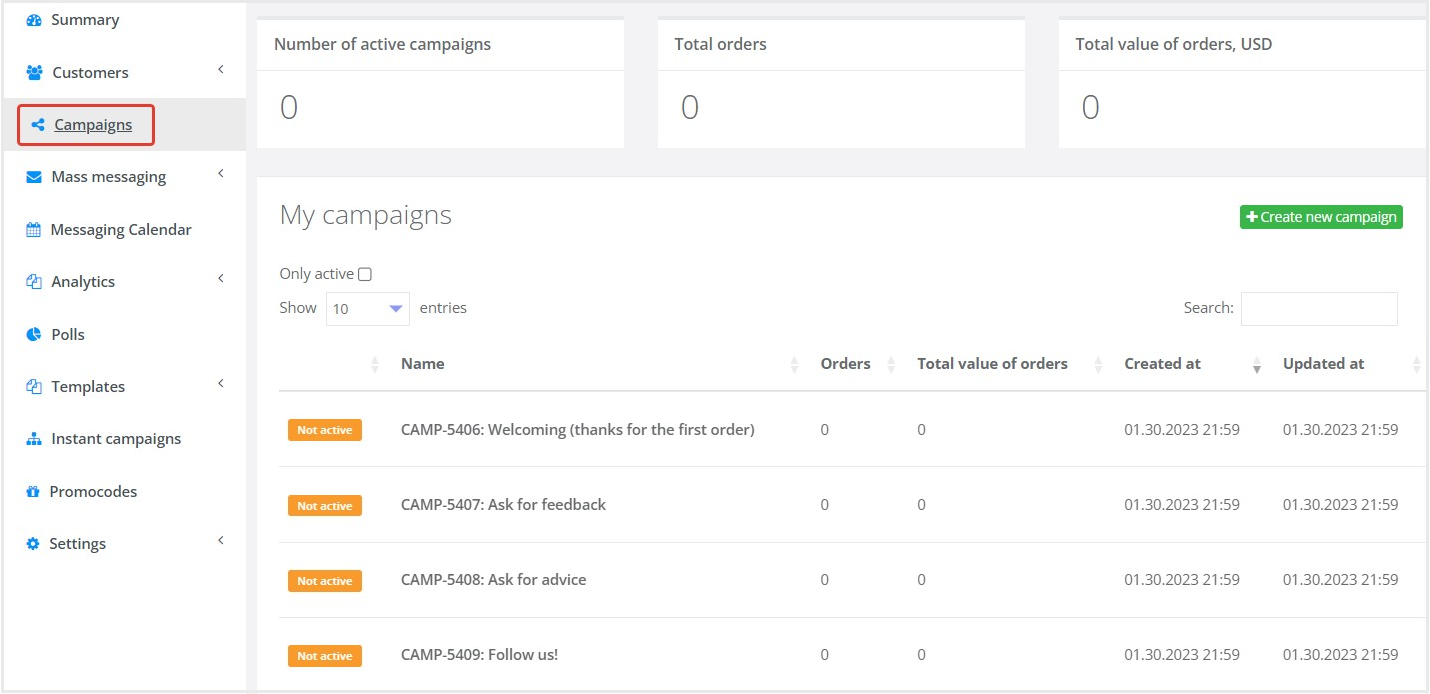
The Campaigns section displays the list of all campaigns.
|
Overall campaign metrics are shown at the top of the section:
- Number of active campaigns;
- Total orders — number of receipts/orders associated with the campaign;
- Total value of orders — amount of receipts/orders associated with the campaign.
The following parameters are displayed for each campaign:
- Status (active/not active/suspended);
- Name;
- Orders — number of receipts/orders associated with the campaign;
- Total value of orders — total amount of receipts/orders associated with the campaign;
- Created at — date of creation;
- Updated at — date of campaign updating;
If the Only active check box is selected, the list shows only active campaigns. There is also an option to set the number of campaigns to be displayed per page.
To find the desired campaign in the list, use the search bar. You can search by campaign name and by creation date.
Clicking on the campaign name opens a page for campaign viewing and editing.
 |
It is possible to perform the following actions with the campaigns:
- Create new campaigns;
- Edit;
- Copy;
- Delete;
- View the campaign statistics.