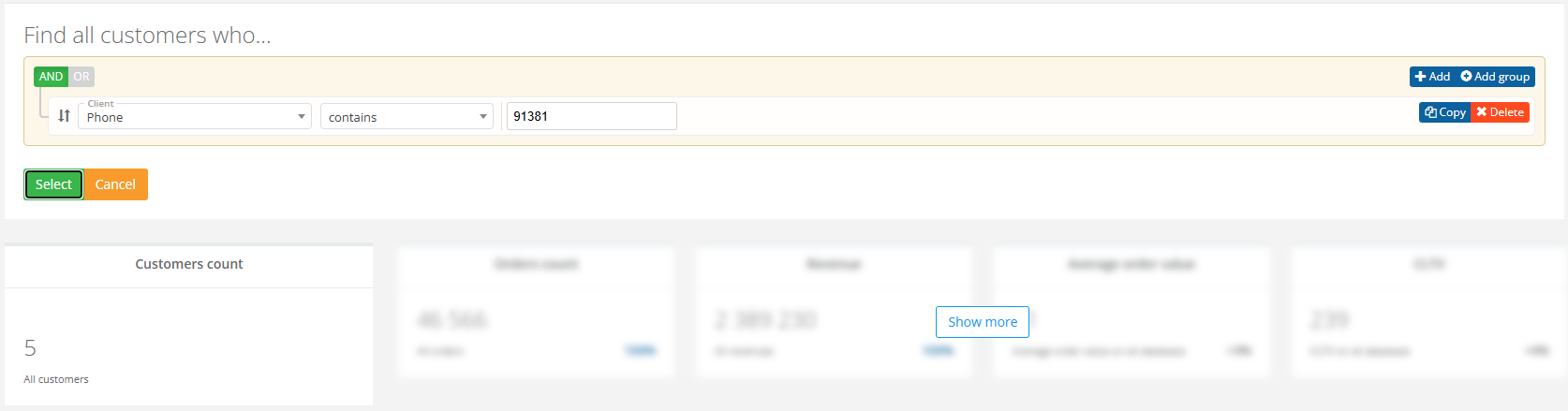
When searching for offers (actions in SMC) to import into Smart Communications module, use the following format: "Actions" — "contains" — ":Offer_ID," (colon + Offer_ID + comma, without spaces or other characters), as shown in the image below.
2. Example of filter settings in process of creating campaigns or mass messages
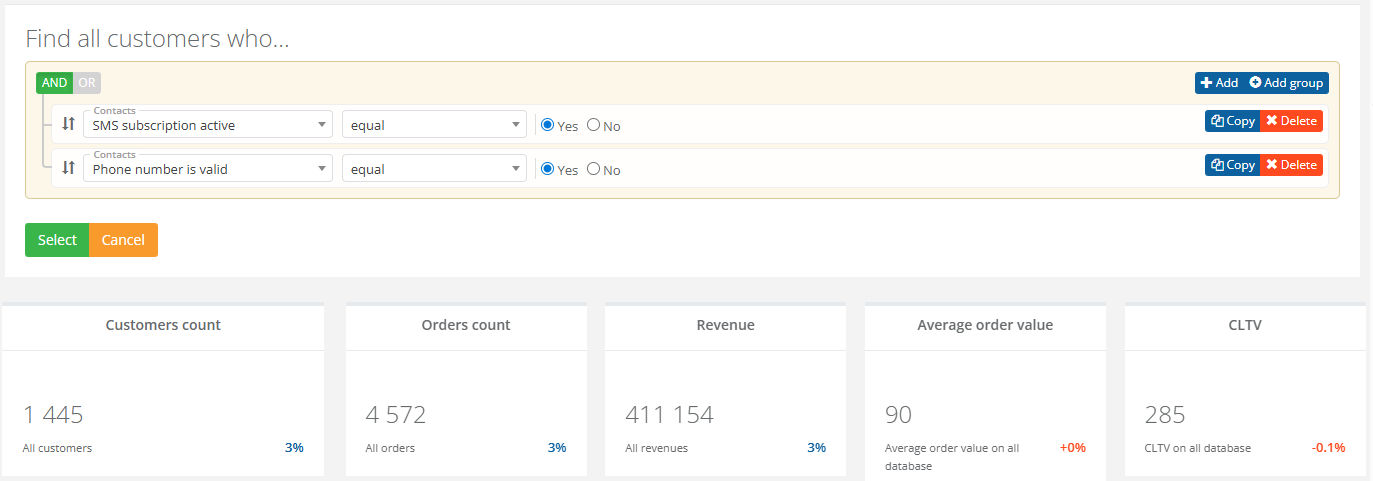
- When creating campaigns/mass mailings for SMS messages, the required filters are "Phone number is valid" and "SMS subscription active" — "equal" — "Yes" (or "SMS newsletter flag" — "equal" — "Yes").
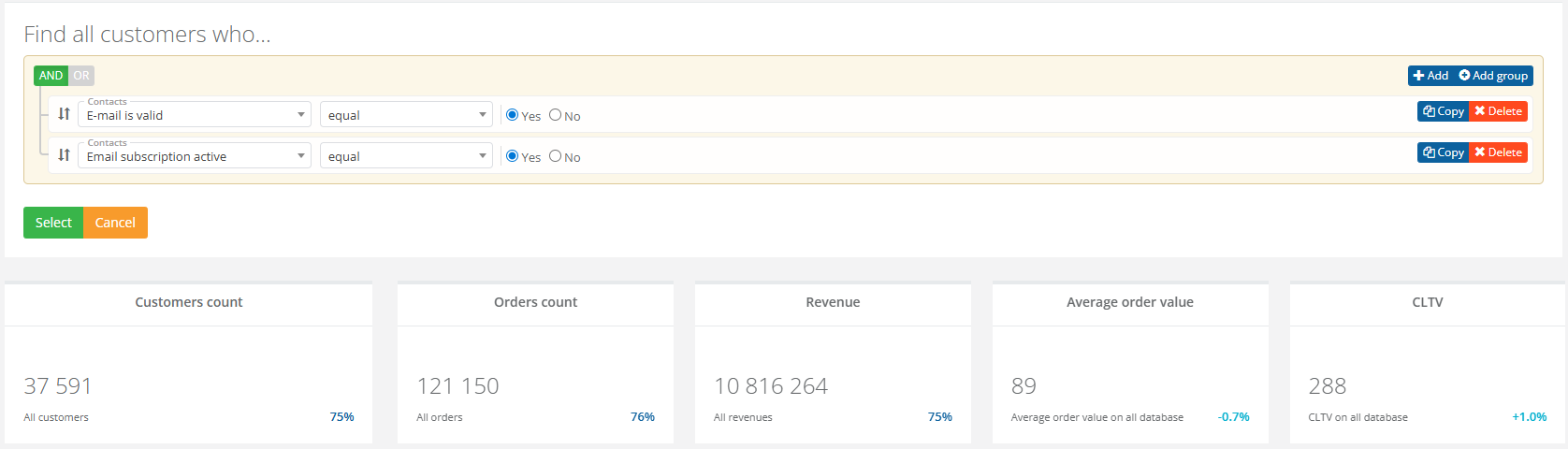
- When creating campaigns/mass mailings for email messages, the required filters are "Email is valid" and "Email subscription active" — "equal" — "Yes" (or "Email newsletter flag" — "equal" — "Yes").
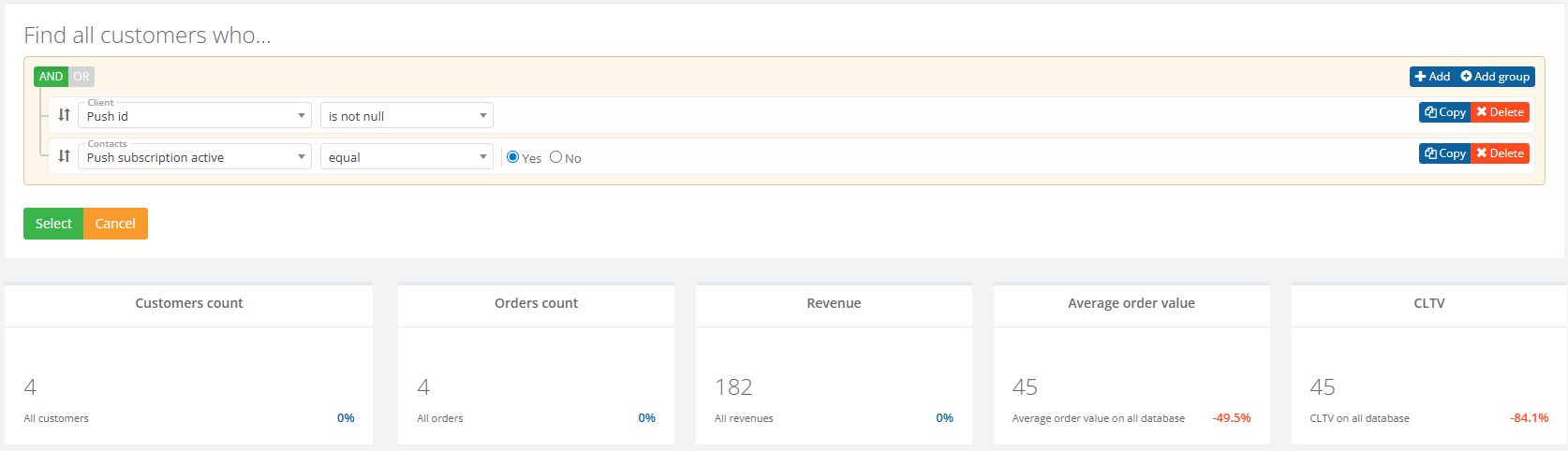
- When creating campaigns/mass mailings for push notifications, the required filters are "Push id" — "is not null" and "Push subscription active" — "equal" — "Yes" (or "Push newsletter flag" — "equal" — "Yes").
3. Example of filter settings for target audiences
The operators "in"/"not in" are frequently used when working with target audiences,:
- The "in" operator works as follows: the filtered parameter appears in at least one of the listed target audiences. For example: "Target audience" — "in" — "Loyal customers, Discounts". This means that the customer should belong to at least one of the listed target audiences.
- The "not in" operator means that the filtered parameter should not be in any of the listed segments. For example: "Target audience" — "not in" — "Test 1, Test 2", meaning the customer should not be in any of the listed target audiences.
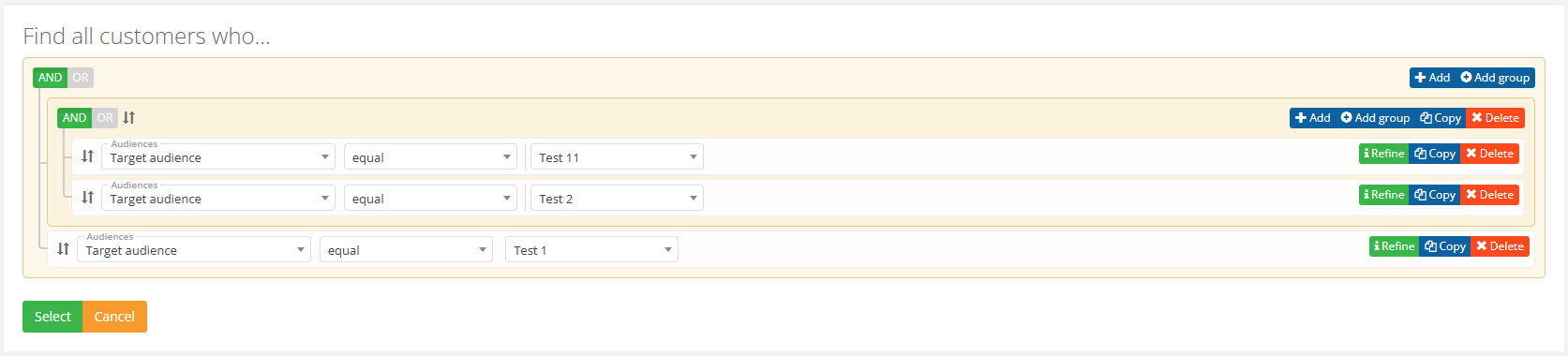
- To find customers who belong to one or more target audiences, click Add group while configuring the segment and select the required values. To combine segments, use the AND condition when adding a group. For more information about combining conditions using AND/OR, see here.
4. Examples of filter settings using the "contains" operator
Use the "contains" operator if you're unsure of the exact name, for example, of a product or product category. It can also be used to specify a phone number or email address of the customer. All items/customers containing the specified data in the value of the filtered parameter will be selected.