
01 - Registration by call
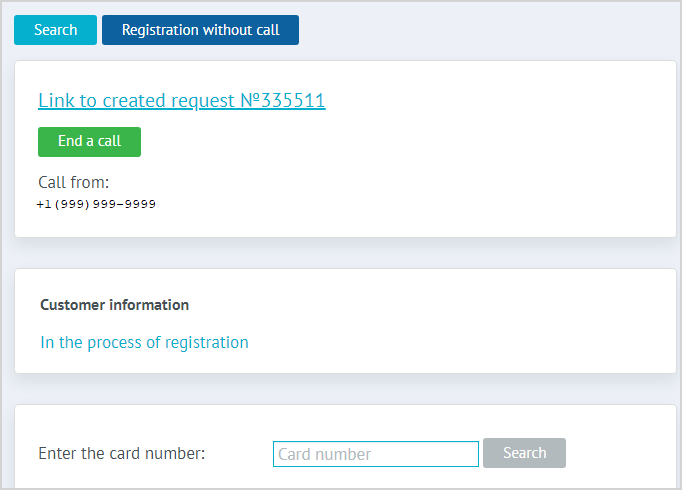
The caller’s phone number is identified during their call to the Call Center.
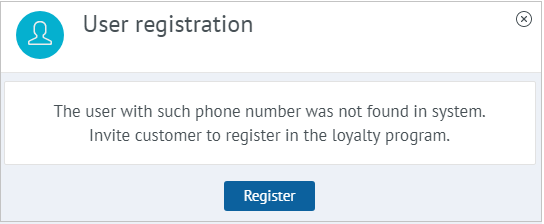
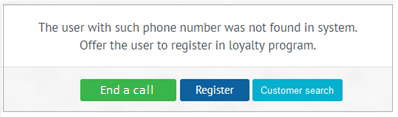
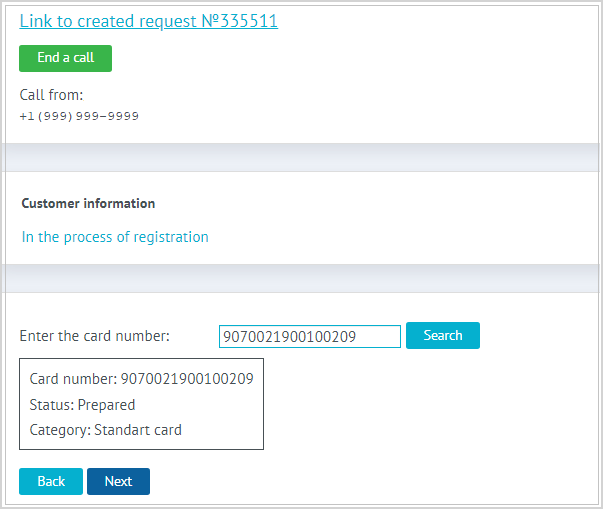
1. If a LP Member with this number is not found in the System, the registration window will automatically open. In this case, the Call Center Agent will see one of the window options (depending on the System settings) to register the caller:
|
|
2. If an LP Member with such number is already registered, their card opens in Loymax Platform.
Depending on the system configuration settings registration of a new LP Member can be done by physical bonus card number or by phone number. In both cases, a virtual card may also be issued during the registration process.
Registration by physical card number
The system configuration settings must be configured correctly to register an LP Member with a physical card only.
| 1. Searching and linking physical card. Issuing a virtual cardPhysical card serachingIf registration is performed by physical card number then clicking Register summons a field for entering the card number. Enter the number in this field and click Search. If the card is found not linked to another LP Member, a window containing information on this card appears on the form. In this case the Call Center agent is able to continue registration of the customer. |
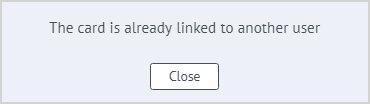
| If the card is found linked to another LP Member, a message appears on the screen. The Call Center agent is not able to continue registration of this customer with this card. In this case the Call Center agent may once again check the card number with the customer in order to verify the correctness of the entered number or ask for another card.
|
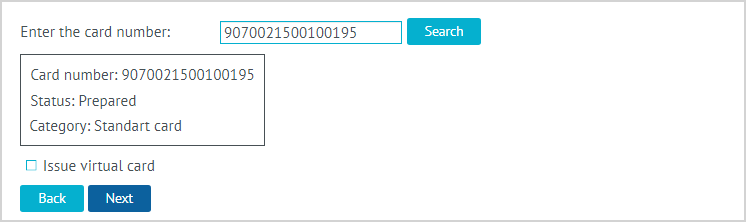
| Virtual card issuingAt the step of linking a physical card it is possible to issue a virtual card with the correct system configuration settings settings. The Call Center agent should ask the customer whether they need a virtual card. if the answer is yes, the agent needs to check the Issue virtual card flag. In addition to the physical, a virtual card will also be linked to the profile of the new LP Member. Click Next to continue registration. |
| 2. Phone number confirmationIn the next step, the System offers to link the phone number from which the incoming call was made to the profile of the new LP Member. To confirm the phone number, the customer needs to provide the verification code sent to the specified number, enter it in a special field, and click Next. The verification code can also be found in Loymax Platform section under Mailing History - SMS messages. To register a customer without confirming the phone number, the Call Center agent needs the appropriate permission. Read more in the Call Center Settings in Loymax Platform article. |
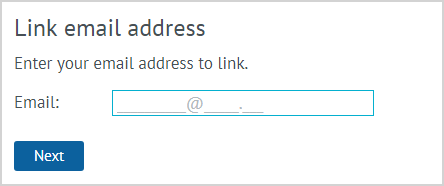
| 3. Email linkingAdditionally, if the configuration of requiring an email address when registering a customer is enabled in the System configuration, a window appears with a field for entering the email. The agent enters the customer's email address and clicks Next. |
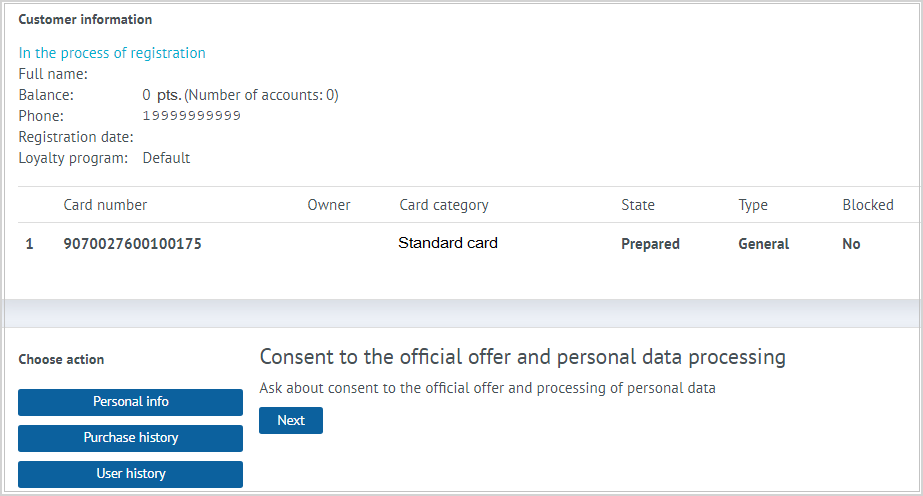
| 4. Confirmation of consent to the personal data processing and formal offerThe Call Center agent clicks Next and invites the customer to accept the formal offer and the personal data processing. The customer can review these documents on the website of the Loyalty Program and at the information desks in points of sale. If the customer consents, the Call Center agent clicks Next. Continuation of customer registration in the Loyalty Program is possible only if the customer consents to the formal offer and the personal data processing. If the customer does not agree with the formal offer and/or the personal data processing, registration in the Loyalty Program must be interrupted. |
| 5. Setting a password for Personal AccountTo set a password for the Personal Account, click Next again. A welcome SMS will be sent to the indicated phone number, confirming activation and providing the password. The LP Member can change the received password later in the Personal Account. |
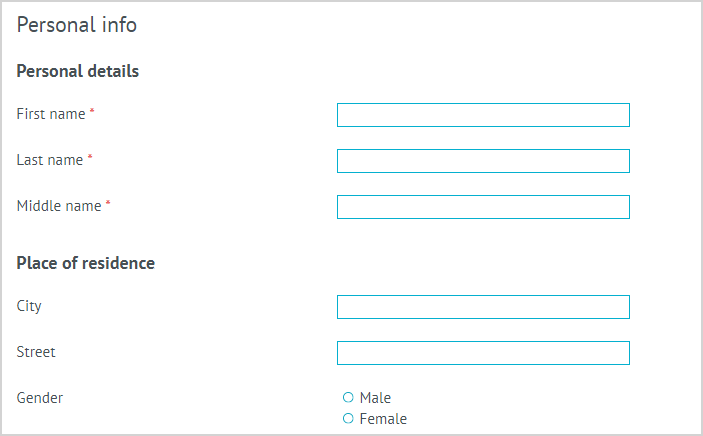
| 6. Filling in the Application formTo complete the registration, fill in the required fields under Personal Info and click Save. The list of required fields may vary depending on the configuration of the application form.
|

| 7. Registration completeIf all the required fields of the application form are filled in, a message will appear indicating that the registration is complete. Once registration is complete, the customer becomes an LP Member. The LP Member's card will be set to Activated status, and information about the new LP Member and the card will be available for viewing and management. |

Registration by phone number

| 1. Phone number linkingIf the step of linking a physical card is disabled in the system configuration settings, clicking the Register button will display a message stating that the phone number from which the call was received will be linked to the new LP Member. The Call Center agent then clicks Next. |
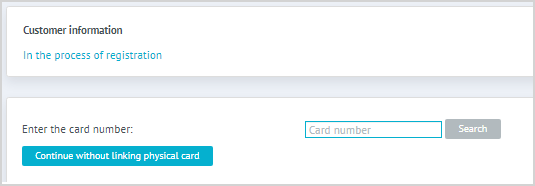
| It is also possible to skip the step of entering the physical card number by clicking the Continue registration by phone without a card button. This option appears depending on certain configuration settings. When continuing registration by phone without a card, the Call Center agent will also see a message about linking the phone number from which the call was received to the new LP Member (as in the screenshot above). |

| 2. Phone number confirmationTo confirm the phone number, the customer needs to provide the verification code sent to the specified number, enter it in a special field, and click Next. The verification code can also be found in Loymax Platform section under Mailing History - SMS messages. To register a customer without confirming the phone number, the Call Center agent needs the appropriate permission. Read more in the Call Center Settings in Loymax Platform article. |
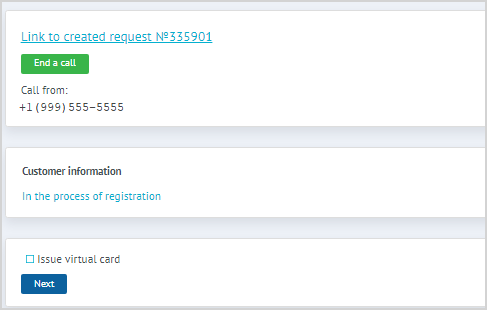
| 3. Virtual card issuingAt the step of linking a physical card it is possible to issue a virtual card with the correct system configuration settings settings. The Call Center agent should ask the customer whether they need a virtual card. if the answer is yes, the agent needs to check the Issue virtual card flag. In addition to the physical, a virtual card will also be linked to the profile of the new LP Member. Click Next to continue registration. |
|
| 4. Email linkingAdditionally, if the configuration of requiring an email address when registering a customer is enabled in the System configuration, a window will appear with a field for entering the email. The Call Center agent enters the customer's email address and clicks Next. |
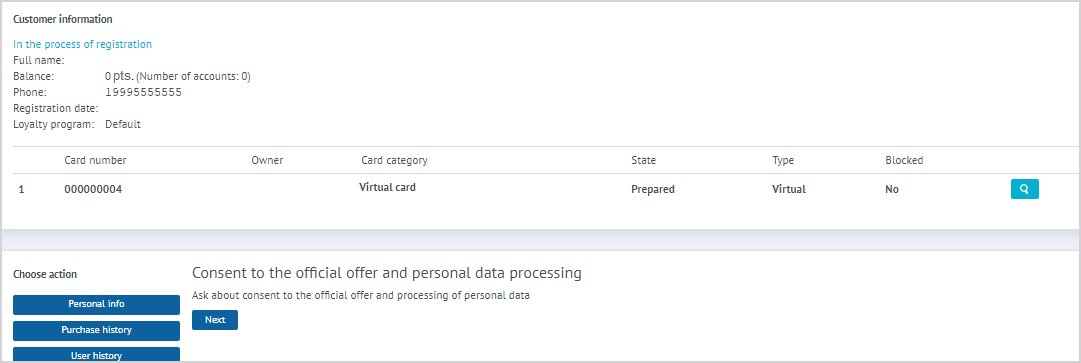
| 5. Confirmation of consent to the personal data processing and formal offerThe Call Center agent clicks Next and invites the customer to accept the formal offer and the personal data processing. The customer can review these documents on the website of the Loyalty Program and at the information desks in points of sale. If the customer consents, the Call Center agent clicks Next. Continuation of customer registration in the Loyalty Program is possible only if the customer consents to the formal offer and the personal data processing. If the customer does not agree with the formal offer and/or the personal data processing, registration in the Loyalty Program must be interrupted. |

| 6. Setting a password for Personal AccountTo set a password for the Personal Account, click Next again. A welcome SMS will be sent to the indicated phone number, confirming activation and providing the password. The LP Member can change the received password later in the Personal Account. |
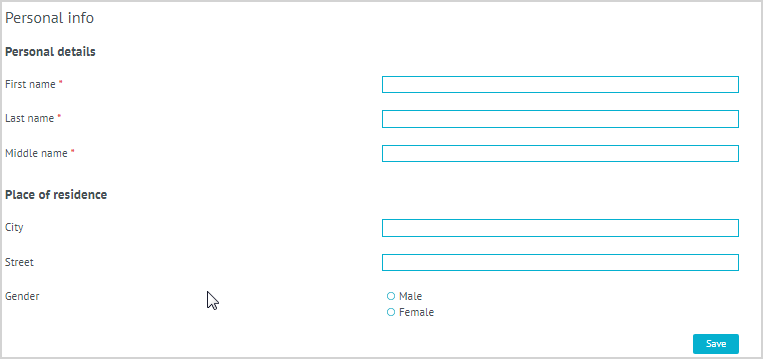
| 7. Filling in the application formTo complete the registration, fill in the required fields under Personal Info and click Save. The list of required fields may vary depending on the configuration of the application form.
|
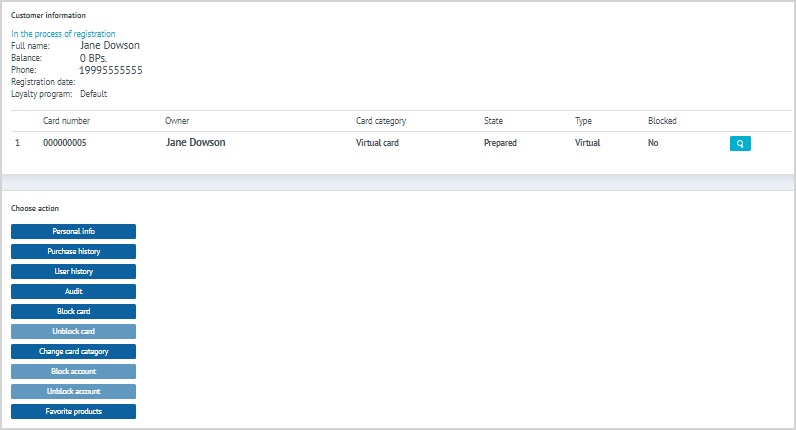
| 8. Registration completionIf all the required fields of the application form are filled in, a message will appear indicating that the registration is complete. Once registration is complete, the customer becomes an LP Member. The LP Member's card will be set to Activated status, and information about the new LP Member and the card will be available for viewing and management. |
Notes:
- When activating the card, the Call Center agent asks the customer questions from the LP Member's application form. The list of required fields may vary depending on the configuration of the application form;
- If the customer refuses to provide the required application form details, the card will not be activated;
- If the LP Member does not have a phone number, they must be informed that activating the card with a landline will prevent further authorization in the Personal Account. Additionally, the LP Member will not receive SMS messages about offers, balance changes, etc;
- Only one card can be activated per phone number;
- If there is a balance on the card at the time of activation, the Call Center agent may ask for the address where the first purchase was made for additional verification.