
Dictionaries
Dictionaries are used to store and manage various reference data in Loymax Smart Communications. They allow users to quickly find the required information and ensure consistent representation and data relevance.
List of dictionaries
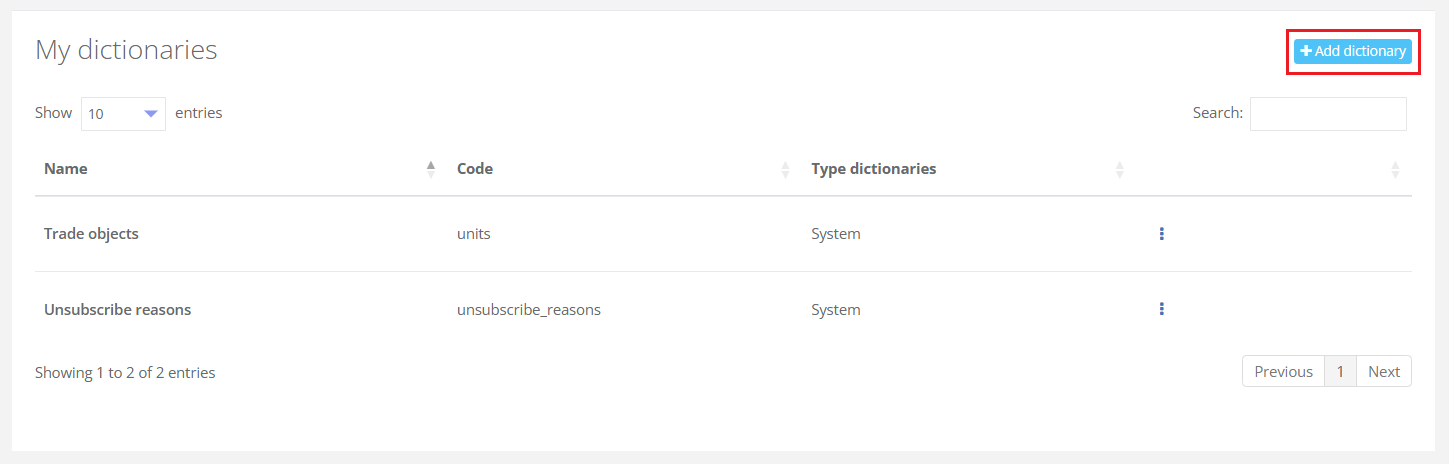
Information about dictionaries in Loymax Smart Communications is located in the section Settings > Dictionaries. Dictionaries are divided into two types:
- System — dictionaries that are pre-defined in the System. Only limited editing functionality is available for system dictionaries, and they cannot be deleted.
- Custom — dictionaries created by users.
|
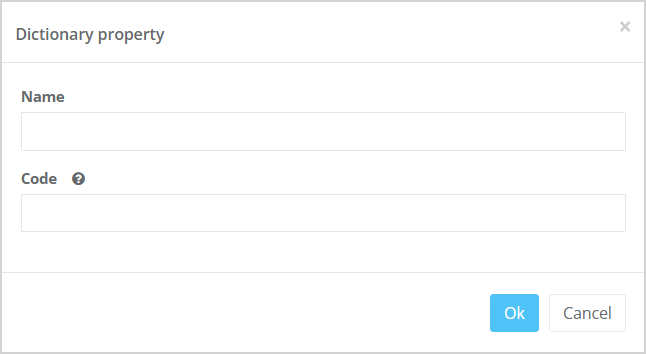
To create a new dictionary, click the Add dictionary button. The Dictionary properties window will open. You need to specify the Name and Code of the dictionary. The code is used to access the dictionary via API. The following actions can be performed with a dictionary:
There is also a search bar that allows to search dictionaries by their name and code.
|
|
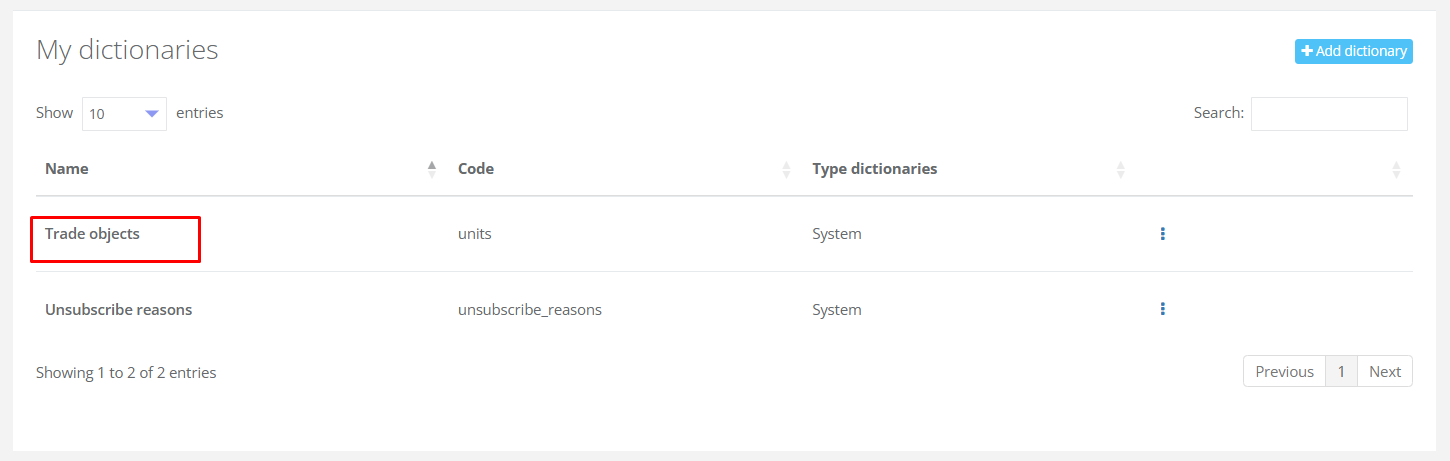
Clicking on the Name of a dictionary there opens a window containing the list of items in that dictionary.
|
Dictionary item list
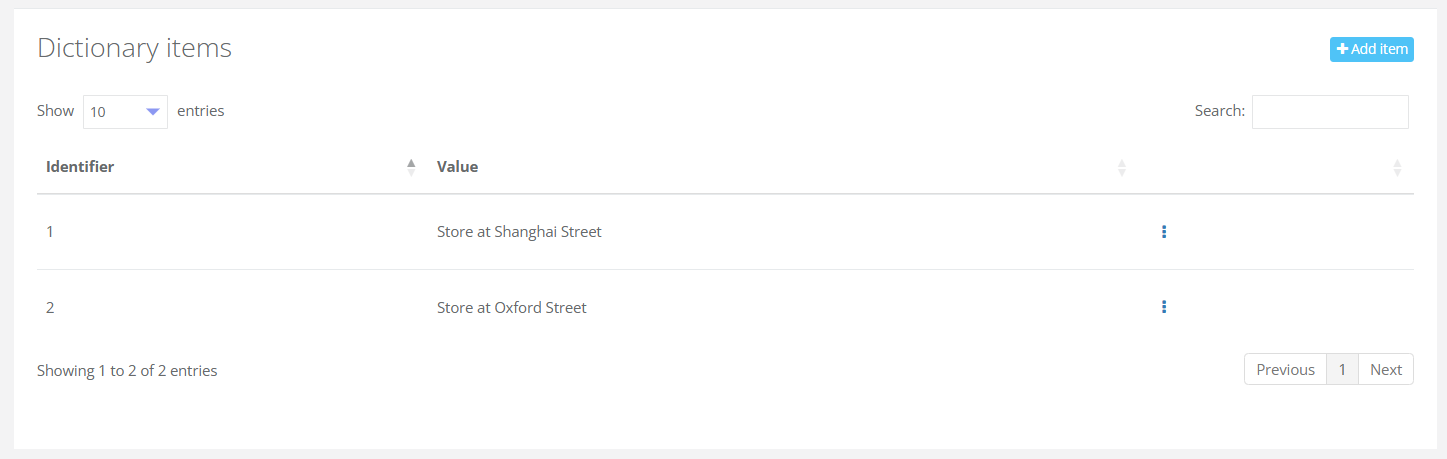
| The page displays a list of all items in the dictionary. |
|
To add a new item to the dictionary, click the Add item button in the top-right corner. The Dictionary item property window will open. You need to specify:
You also have the option to edit or delete an item from the dictionary. To do this, click the corresponding buttons at the end of the row for the desired item. A search function by name and identifier is also available in this section. |
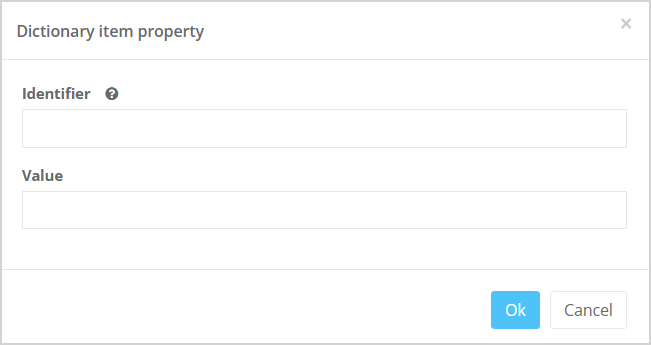
|
System dictionary "Unsubscribe reasons"
Click on the Unsubscribe Reasons dictionary name to open the Dictionary items page. By default, two unsubscribe reasons are already set up:
You can add new unsubscribe reasons by clicking the Add item button in the top-right corner of the page. |
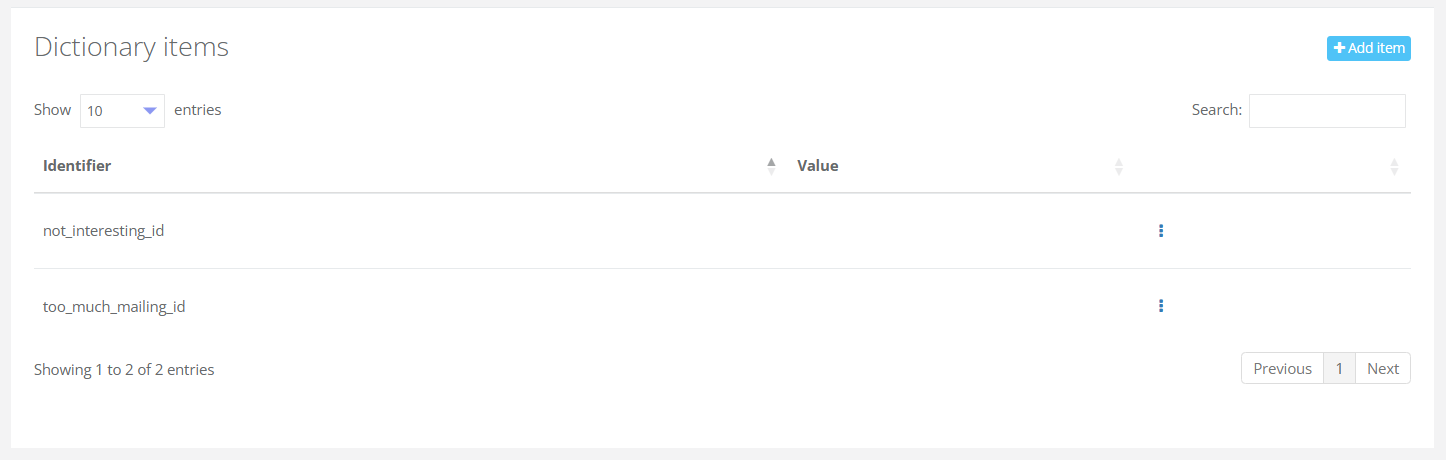
|
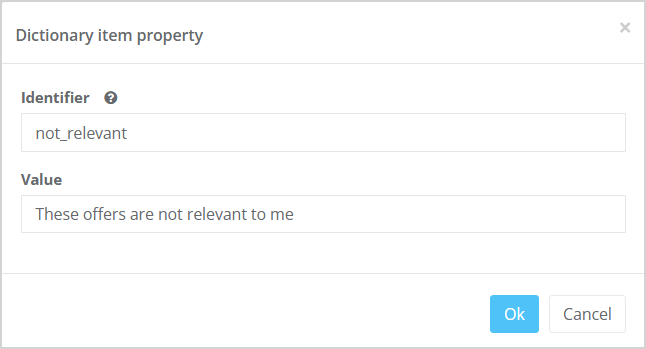
The Dictionary item property modal window will open, where you need to specify:
For example:
The selected reason will become available in the unsubscribe options on the Unsubscribe page. If a customer selects this reason and unsubscribes from mailings, it will be listed in the analytical report. |
|