3.2. Triggers
A trigger is an event that activates a campaign. Each trigger type has its own set of parameters. The trigger outputs an array of customer profiles that meet the condition defined in the trigger.
Trigger example: Days since registration. This trigger includes all customers who registered N days ago. Thus, the audience updates daily when the trigger fires.
Editing a trigger
When creating a new campaign, a trigger is already present in the editing field. The default trigger depends on the enabled functionality:
- If both receipt and order functionality is enabled, the default trigger is Cheque issued;
- If only order functionality is enabled, the default trigger is Order created;
- If both receipt and order options are disabled, the default trigger is Date has come.
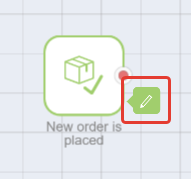
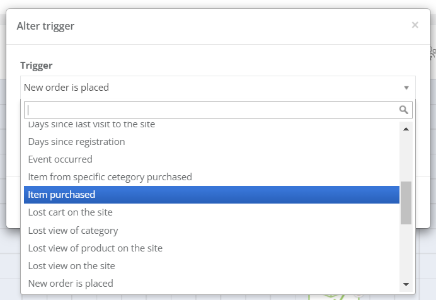
To change the campaign’s trigger, double-click it or right-click and select the Edit icon. In the dropdown list, select the desired trigger and click OK.
 |
|
The following triggers are available in Loymax Smart Communications:
- Lost cart on the site
- Lost view on the site
- Lost view of category
- Lost view of product on the site
- Anniversary
- Days since order
- Days since receipt
- Days since registration
- Added a product to the container
- Item ordered
- Item from specific category ordered
- Product in cart is low on stock
- The price of the viewed product has changed
- Product price has changed
- Order status changed
- Customer registration
- Customer registration + filter
- Viewed the page on the site
- The customer visited the site
- Viewed the product on the site
- Viewed the product category on the site
- Item purchased
- Item from specific category
- Date has come
- Date come for order
- Date come for client
- Date come for cheque
- Bonus expected expiration
- Repeat date
- Segment is changed
- User segment change
- Cheque issued
- Event occurred
- Web event occurred
- Poll completed
- Days since last visit to the site
- Order created
- System event
- Action worked
| Trigger | Description | ||
Lost cart on the site | Detects cases when the customer adds items to the cart but does not place an order.
This trigger considers the web event Order completed (order_complete), which is unrelated to the presence of a receipt. If receipt-based logic is required, add an additional filter by receipt count. | ||
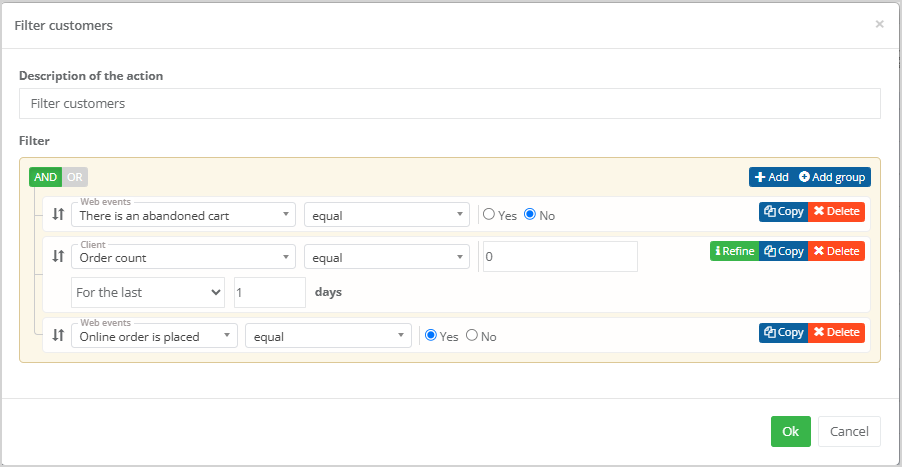
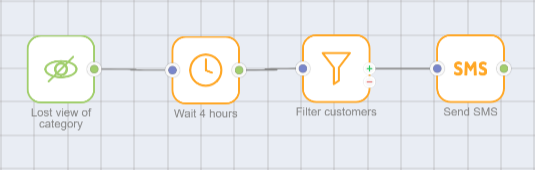
Lost view on the site | A general trigger for lost category or product views that detects cases where a customer viewed a product or a category on the website but did not add items to the cart. If a customer viewed a product or category, but no Order completed (order_complete) web event occurred before the trigger chain processing starts (every 5 minutes), the customer is included in the campaign. The trigger fires only for customers with a Product view (view_product) or Category view (view_category) event in the same session, where no Order completed (order_complete) event occurred. Therefore, it is recommended to place a Wait action after the trigger, followed by a Filter customers action with the following settings:
| ||
Lost view of category | Detects cases where a customer views a category on the website but does not add items to the cart. If a customer views a category, but no Order completed (order_complete) event occurs before the trigger chain processing starts (every 5 minutes), the customer is included in the campaign. The trigger fires for customers who, within the last 2 days, had one of the following events: Login (user_login), Page visit (user_visit), or Subscription (subscribe)—indicating the start of a web session—and also had a Category view (view_category) event within the last 24 hours, but no Order completed (order_complete) event. This means the category was viewed, but the goal (order placement on the website or in the Mobile Application) was not achieved. Therefore, we recommend adding a Wait action after the trigger, followed by a Filter customers action with the following settings:
| ||
Lost view of product on the site | Detects cases where a customer views a product on the website but does not add it to the cart. If a customer views a product, but no Order completed (order_complete) event occurs before the trigger chain processing starts (every 5 minutes), the customer is included in the campaign. The trigger fires for customers who had one of the following events: Login (user_login), Page visit (user_visit), or Subscription (subscribe)—marking the start of a web session—and also had a Product view (view_product) event within the last 24 hours, but no Order completed (order_complete) event. Web session duration is not considered for this trigger. After the trigger, we recommend adding a Wait action after the trigger, followed by a Filter customers action with the following settings:
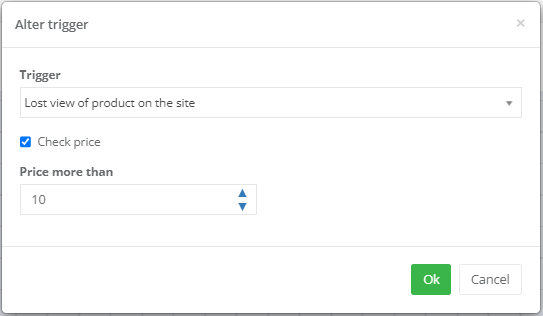
You can configure the trigger to fire only for products in a specific price range. If the Consider price checkbox is selected, the trigger will activate only for products priced above the specified amount.
The screenshot shows a configuration example where the trigger fires only when a customer views products priced above 10 RUR. | ||
Anniversary
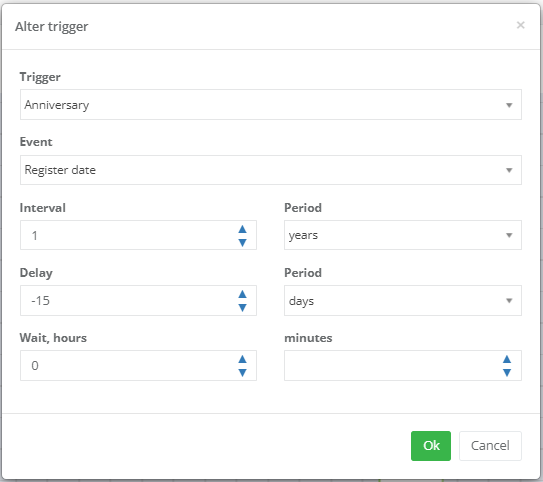
| Detects X days before/after the anniversary of:
The trigger allows you to:
Trigger usage examples:
| ||
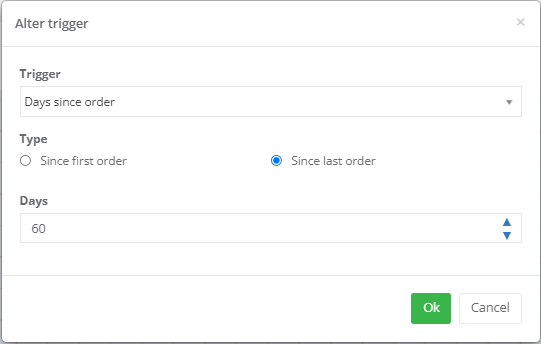
Days since order | The trigger fires when the specified number of days has passed since the customer placed an online order. For example, customers who haven’t placed a new order within 30 days after their last order:
| ||
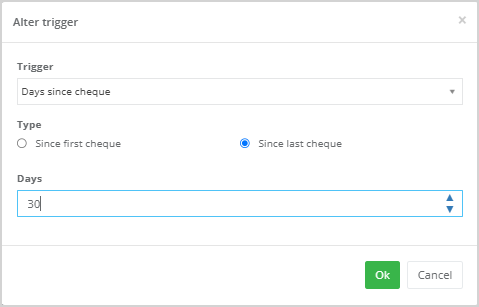
Days since receipt | The trigger fires when the specified number of days has passed since the receipt appeared in the system. For example, customers who have not made any purchases within 60 days after their last receipt:
| ||
Days since registration | The trigger fires when the specified number of days has passed since the customer’s registration. The trigger fires only if the Registration date field is not empty in the customer profile. | ||
Added a product to the container | Detects when a customer adds an item to the specified container. Select the desired container from the dropdown list in the Container field. | ||
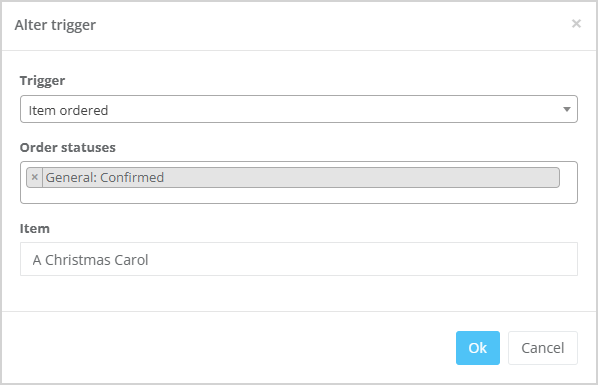
Item ordered | Detects when a product is ordered on the website. To define the order status for which the trigger should fire, fill in the Order statuses field. To select a product, begin typing its name in the Item field. Matching products will appear in the list.
| ||
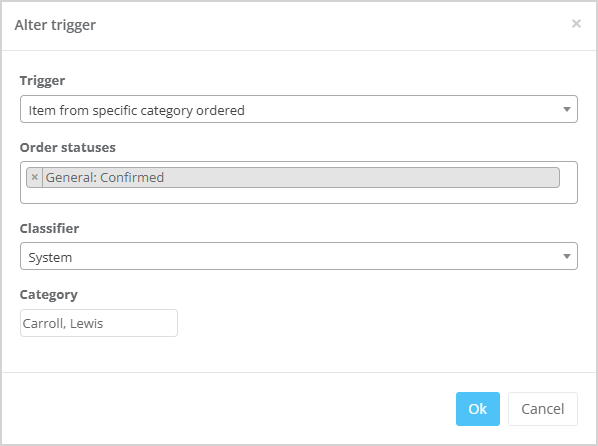
Item from specific category ordered | Detects when a product from a specific category is ordered. To define the order status for which the trigger should fire, fill in the Order statuses field by selecting the desired option from the dropdown. Select the desired classifier from the Classifier dropdown. To select a category, begin typing its name in the Category field. Matching categories will appear in the list.
| ||
Product in cart is low on stock | The trigger fires when items placed in the customer’s cart but not purchased are running out of stock. | ||
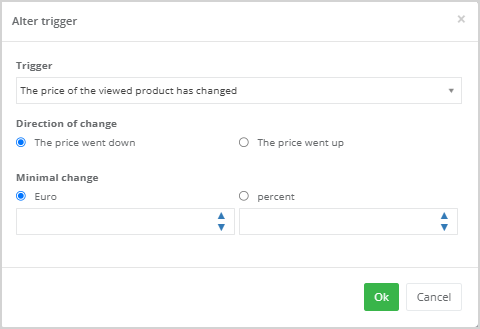
The price of the viewed product has changed | Detects price changes for products previously viewed by the customer on the website.
Specify the price change direction (decreased or increased) and set the minimum change value (absolute value or percentage). | ||
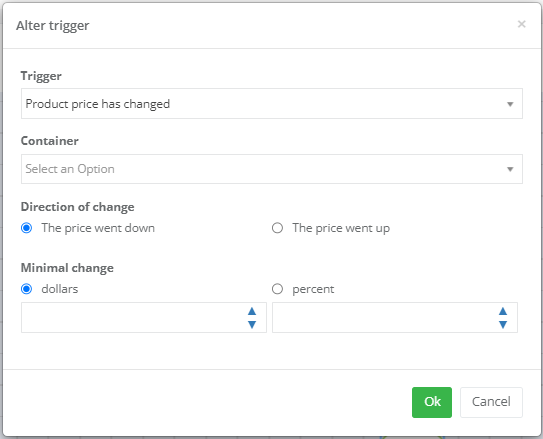
Product price has changed | Detects price changes for a product.
Select the desired container from the Container dropdown. Specify the price change direction (decreased or increased) and set the minimum change value (absolute value or percentage). | ||
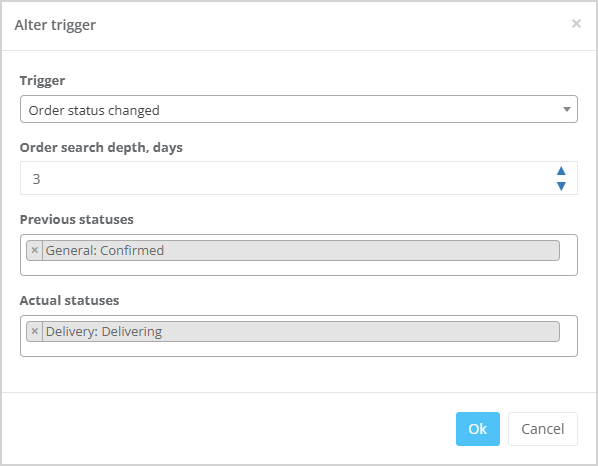
Order status changed | Detects changes in order status.
Specify the order search depth (in days), and select the initial and current order statuses. | ||
Customer registration | Detects when a customer registers in the System. | ||
Customer registration + filter | Detects when a customer registers in the System and allows an additional filter: Customer ID contains. | ||
Viewed the page on the site | Detects when a customer visits a specific section of the website. To select a section, begin typing its name in the Section field. Matching sections will appear in the list. | ||
The customer visited the site | Detects when a customer visits the website. | ||
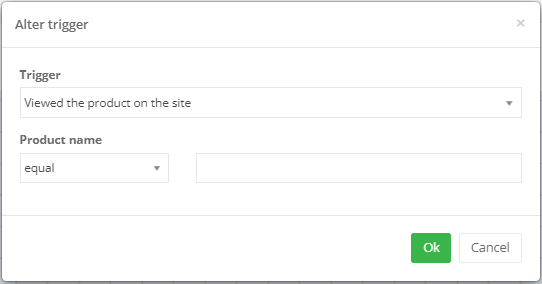
Viewed the product on the site | Detects when a product is viewed on the website.
To select a product, set the condition to equals and enter the exact product name from the catalog. Alternatively, select contains and begin typing the product name—matching products will appear in the list. This trigger is useful when running promotions for a specific product or its complementary items. | ||
Viewed the product category on the site | Detects when a product from a specific category is viewed. To select a category, begin typing its name in the Category field. Matching categories will appear in the list. This trigger can be used when running promotions for a specific product category. | ||
Item purchased | Detects when a product is purchased. To select a product, begin typing its name in the Product field. Matching products will appear in the list. | ||
Item from specific category | Detects when a product from a specific category is purchased. To select a category, begin typing its name in the Category field. Matching categories will appear in the list. | ||
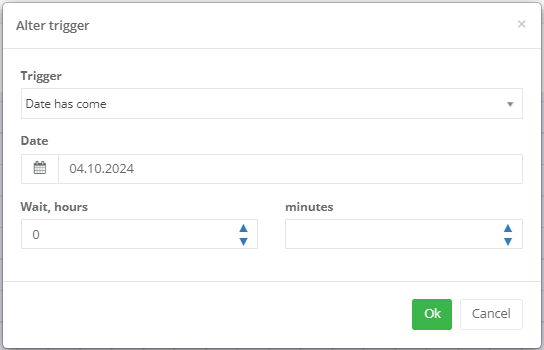
Date has come | Launches the campaign on the selected date.
In the Start at ... hours ... minutes field, you can define the exact time when the trigger should fire. If not specified, the trigger fires at 00:00 on the selected date (based on the time zone configured in Settings > General settings > Contact details > Time zone). Sometimes it’s necessary to reuse campaigns that start with this trigger. For example, an earlier promotion triggered on the 2nd of last month used a campaign set to launch on the 1st of this month. A few months later, you may need to rerun the same campaign (e.g., with updated start date and message text). In this case, ensure that the Interval between reentries value is shorter than the time elapsed since the previous campaign launch—otherwise, customers won’t re-enter the campaign, because the System will consider them already processed and exclude them. | ||
Date come for order | Launches the campaign a certain number of days before/after/on the date specified in an order field. For example: if the order includes a separate field for pickup deadline, you can configure a reminder that the order will soon be returned.
To select the date field, begin typing its name in the Date field input. Matching fields will appear in the list. Available options for trigger:
The trigger fires at 00:00 (according to the time zone configured in Settings > General settings > Contact details > Time zone). If the subsequent actions are better executed during business hours, add a delay using the Wait action, or specify a launch time in Start at ... hours ... minutes. If the trigger should fire only for orders with a specific status, select the desired status from the Order statuses dropdown. | ||
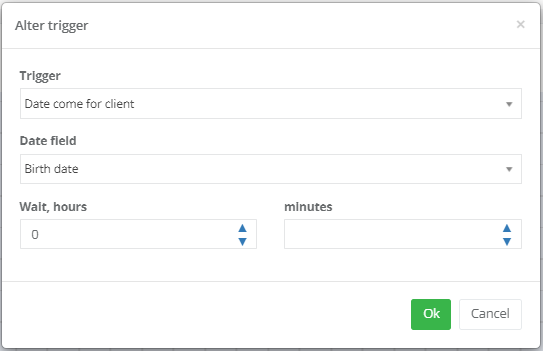
Date come for client | Launches the campaign on the date specified in a field of the customer’s profile.
You can link campaign launches to customer-specific dates, such as:
The trigger fires at 00:00 on the specified date (based on the time zone configured in Settings > General settings > Contact details > Time zone). If subsequent actions are better performed during business hours, add a delay using the Wait action, or specify a launch time in Start at ... hours ... minutes. Sometimes it’s necessary to reuse campaigns that start with the Customer date reached trigger. For example, last month you ran a campaign tied to customers’ last receipt dates. A few months later, you may wish to run the same campaign again (e.g., with updated message text). In such cases, ensure that the Interval between reentries value is shorter than the time elapsed since the previous campaign launch—otherwise, customers won’t re-enter the campaign, because the System will consider them already processed and exclude them. | ||
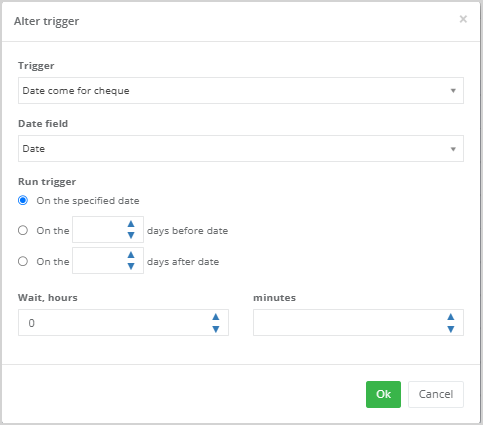
Date come for cheque | Launches the campaign a certain number of days before/after/on the date specified in one of the receipt fields.
To select the date field, begin typing its name in the Date field input. Matching fields will appear in the list. Available options for trigger:
The trigger fires at 00:00 (according to the time zone configured in Settings > General settings > Contact details > Time zone). If subsequent actions are better executed during business hours, add a delay using the Wait action, or specify a launch time in Start at ... hours ... minutes. | ||
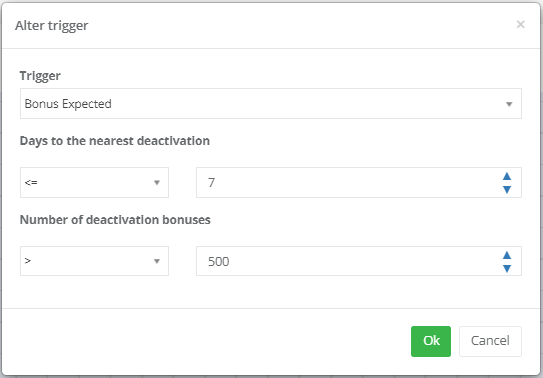
Bonus expected expiration | Launches the campaign when bonus points expiration is expected for the customer.
In the Days to the nearest deactivation and Number of deactivation bonuses fields, you can set the condition as:
For example: the trigger fires for customers whose bonuses (over 500 points) will expire in 7 days or less. | ||
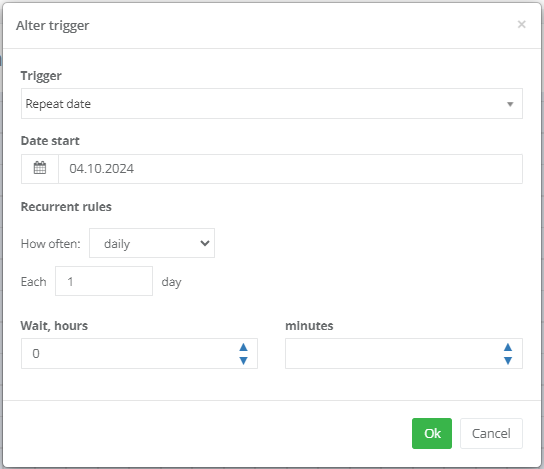
Repeat date | Enables recurring campaigns on specified dates.
Recurrence rules define how often the campaign runs. Select the desired option in the Frequency field:
In the Start at ... hours ... minutes field, you can set the trigger’s firing time. If left unspecified, the trigger fires at 00:00 on the selected date (based on the time zone configured in Settings > General settings > Contact details > Time zone). | ||
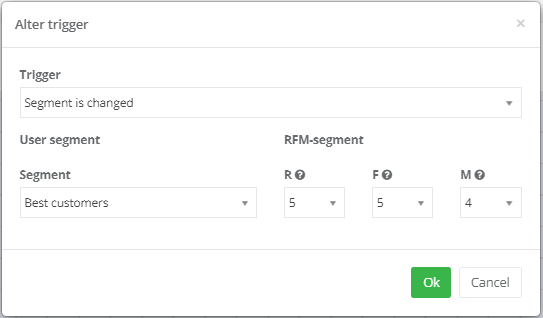
Segment is changed | The trigger allows to select a segment and R (recency), F (frequency) and M (monetary) parameters. The trigger fires for customers matching the specified criteria. First, create a segment or select a saved one, then specify the exact parameters to track—for example, R=5, F=5, M=4.
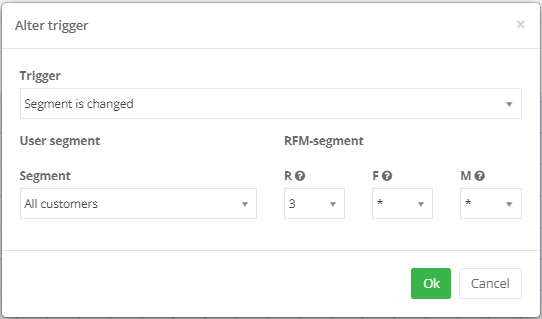
If you enter * instead of a number for a parameter, that parameter is ignored and can take any value. Example: track customers in R-segment category 3, regardless of F and M values:
| ||
User segment change | Allows selecting a segment containing customers for whom the trigger should fire. First, create a segment or select one from the dropdown list. | ||
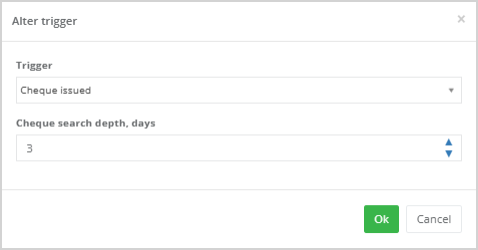
Cheque issued | This is the default trigger in the System when receipt functionality is enabled. It fires upon a purchase—online or offline—when a receipt appears in the System.
Optionally, you can set the cheque search depth (in days) by filling in the corresponding field. | ||
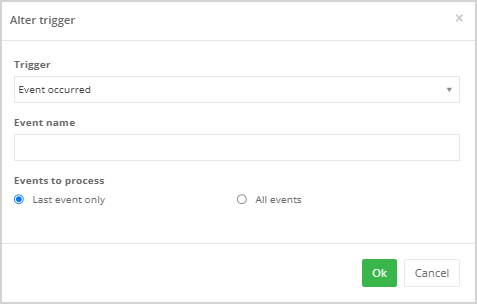
Event occurred | Detects custom events. To select an event, begin typing its name in the Event name field. Matching events will appear in the list. Event examples:
For more details, refer to the dedicated article. | ||
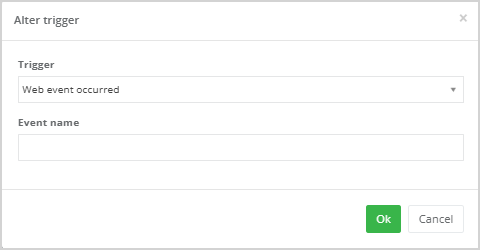
Web event occurred | Detects events on the website or in the Mobile Application. To select an event, begin typing its name in the Event name field. Matching events will appear in the list.
Web event examples:
| ||
Poll completed | The trigger fires when a customer complets a poll. | ||
Days since last visit to the site | The trigger fires when the specified number of days has passed since the customer’s last website visit. | ||
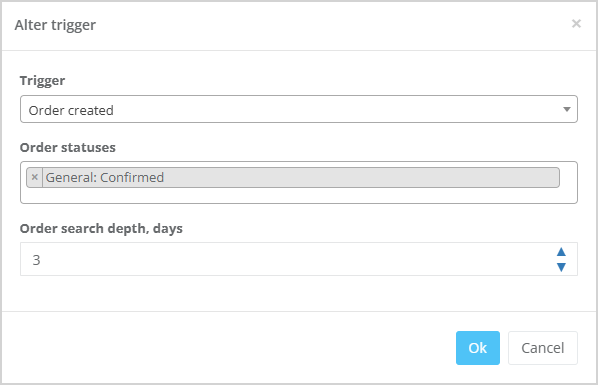
Order created | This is the default trigger when order functionality is enabled. It fires upon order placement in the online store.
| ||
System event | Detects system events. To select an event, begin typing its name in the Event name field. Matching events will appear in the list. Event example: product X is back in stock. For more details, refer to the dedicated article. | ||
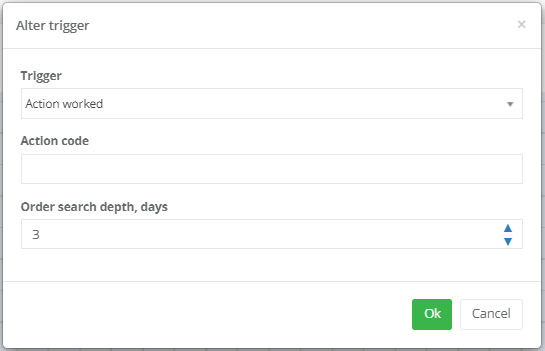
Action worked | The trigger fires when the specified offer is applied. Enter the offer identifier in the Action code field. You can also define the cheque search depth (in days).
|